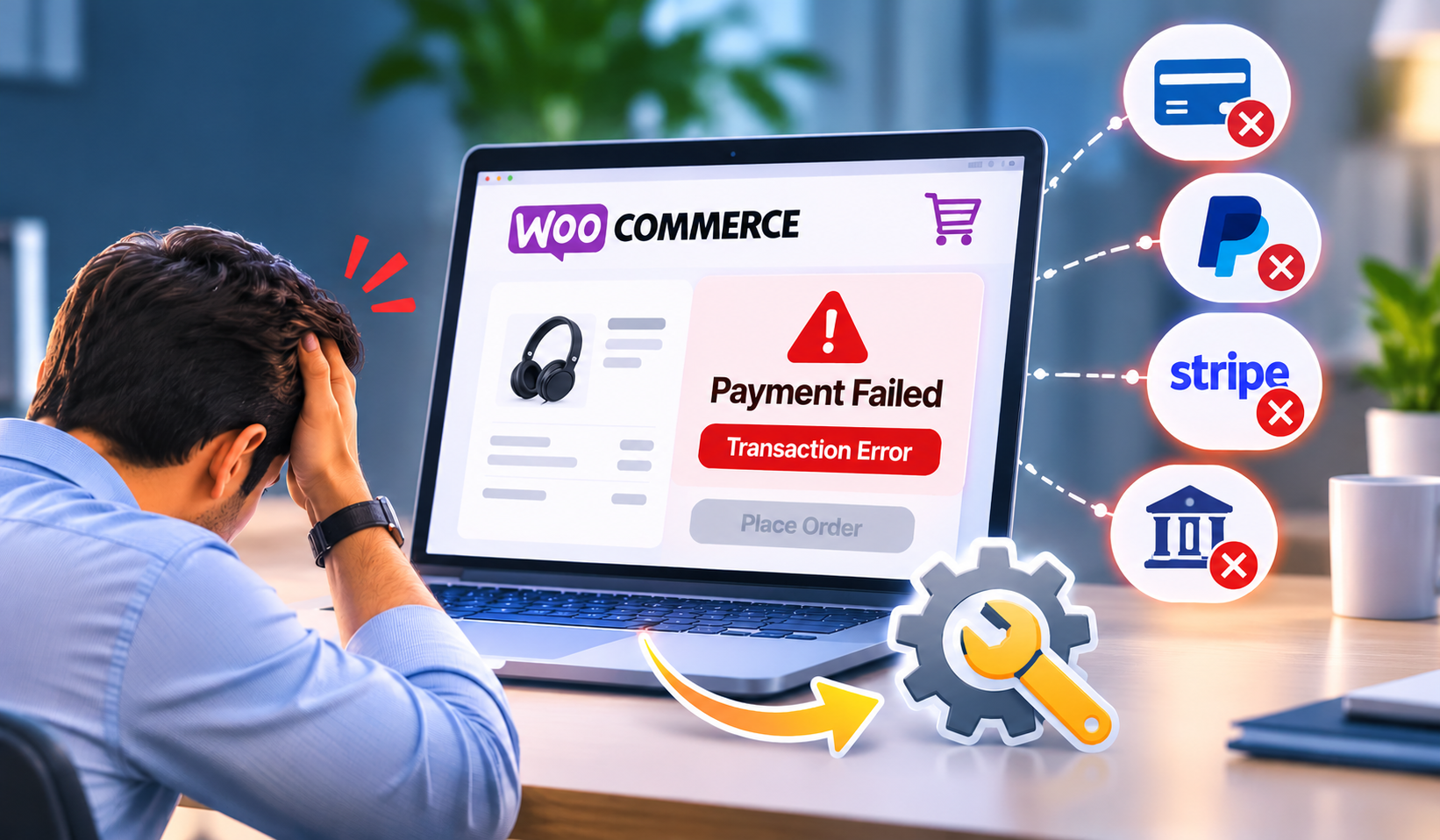

A WordPress error can cost more than a few frustrating minutes. A blank page, broken checkout, malware warning, or slow-loading website can stop leads from coming in and reduce customer trust. This blog post will cover some common WordPress errors & how to fix them. It will help business owners identify what is wrong, take safe first steps, and know when professional support is the better option.
Before changing files or settings, create a full backup of your website and database. If the site is live and generating enquiries or sales, avoid making multiple changes at once. A careful diagnosis prevents a minor issue from becoming a longer outage.
A completely blank page is commonly caused by a plugin conflict, theme issue, or exhausted PHP memory. Start by disabling plugins one at a time. If you cannot access the dashboard, rename the plugins folder through your hosting file manager.
If that does not help, switch temporarily to a default WordPress theme and increase the PHP memory limit. Restore the last working backup if the error began immediately after an update.
The 500 Internal Server Error is a broad server-side message. It often points to a corrupted .htaccess file, a faulty plugin, or incorrect file permissions. Rename the .htaccess file, then visit the WordPress permalink settings and save them again to create a fresh file.
If the problem continues, check the server error logs and ask your host whether there are PHP or resource-limit issues.
This message means WordPress cannot communicate with its database. Incorrect database credentials in the wp-config.php file are a common cause, especially after a migration or hosting change.
Confirm the database name, username, password, and host with your hosting provider. If those details are correct, the database server may be down or the database may need repair.
When posts or pages return a 404 error but the homepage works, the permalink structure is usually the cause. Go to Settings, then Permalinks, and click Save Changes without altering anything.
If that does not resolve the issue, check whether your .htaccess file is writable. On some hosting environments, rewrite rules must be enabled at the server level.
During updates, WordPress creates a temporary maintenance file. If an update is interrupted, the site can remain stuck on the maintenance screen. Remove the .maintenance file from the website root directory using your hosting file manager or FTP access.
Do not immediately rerun every pending update. First confirm why the previous update failed, such as low server resources or incompatible software.
An update that fails midway can leave plugins, themes, or WordPress core files incomplete. This can create errors across the site. Check available disk space, PHP version, file permissions, and your hosting error logs before trying again.
For business websites, test major WordPress and plugin updates on a staging site first. This is particularly valuable for WooCommerce sites with active products, payments, and customer accounts.
A new feature, design change, or update can conflict with an existing plugin or theme. Typical symptoms include broken layouts, dashboard errors, missing forms, or checkout failures.
Disable the most recently updated plugin first. If the issue disappears, update, replace, or roll back that plugin. Avoid installing multiple plugins that perform the same job, such as caching, security, or page-building functions.
The “Allowed memory size exhausted” error appears when WordPress needs more server memory than it has been assigned. Large plugins, complex page builders, oversized product catalogs, and poorly optimized code can trigger it.
Increase the PHP memory limit through your hosting settings or wp-config.php file. More memory may solve the immediate error, but recurring problems require a review of resource-heavy plugins and hosting capacity.
Long imports, backups, image processing, and plugin updates may exceed the server’s maximum execution time. The task then stops before completion.
Increase the execution time limit if your hosting plan allows it. For large product imports or website migrations, run smaller batches. A stronger hosting environment may be necessary if timeouts occur regularly.
If WordPress rejects an image, document, or video upload, the file may exceed the server upload limit. You may also be dealing with unsupported file types, inadequate storage, or incorrect folder permissions.
Check the maximum upload size in the Media Library. Compress large images before uploading, and use properly sized web images instead of uploading high-resolution originals directly from a camera.
Broken images can result from a changed website URL, an incomplete migration, mixed-content warnings, or missing media files. First inspect whether the image URL points to the correct domain and uses HTTPS.
If many images disappeared after a migration, the uploads folder may not have transferred correctly. Restoring media files from a backup is often faster and safer than manually replacing hundreds of images.
A mixed-content warning occurs when an HTTPS website loads some resources through HTTP. Browsers may block those resources, causing missing images, fonts, scripts, or contact form functions.
Update the WordPress Address and Site Address to HTTPS, then replace old HTTP references in the database. Check third-party scripts as well, including tracking tags, embedded videos, and external form tools.
Visitors may see a browser warning if the SSL certificate is expired, incorrectly installed, or does not match the domain name. This is especially damaging for eCommerce, lead-generation, and login pages.
Confirm that the certificate covers both the www and non-www versions of your domain where needed. Renew the certificate, correct domain settings, and force secure HTTPS redirects after testing.
A login redirect loop sends users back to the login page after they enter correct credentials. Browser cookies, incorrect site URLs, caching settings, and security plugins are common causes.
Clear browser cookies and cache first. Then confirm that the WordPress URL settings use one consistent domain format. If necessary, disable caching and security plugins temporarily to isolate the conflict.
Recommended post: How to fix WordPress login redirect loop error
Too many failed login attempts, a security plugin, changed permissions, or a forgotten password can block administrator access. Use the password reset option first, but do not repeatedly guess credentials.
If the reset email does not arrive, check email delivery settings and spam filters. A developer or maintenance team can reset access securely through the database while preserving user accounts and site data.
Contact form messages, password resets, order notifications, and quote requests may fail because standard WordPress email depends on server mail functions. These messages can also land in spam folders.
Use authenticated SMTP email settings rather than relying solely on default server mail. Test contact forms and transactional emails after configuration changes so valuable leads do not go unnoticed.
Recommended post: How to fix WordPress Not Sending Emails issue
Slow pages hurt user experience, search visibility, and conversion rates. Common causes include weak hosting, too many plugins, unoptimized images, excessive scripts, and no caching strategy.
Start with image compression, page caching, database cleanup, and removal of unused plugins. Speed work should be measured before and after changes. Removing the wrong script can affect analytics, forms, or advertising campaign tracking.
Unexpected redirects, spam pages, strange admin accounts, or browser security warnings are signs that a WordPress site may be compromised. Do not simply delete suspicious files and assume the problem is solved.
A proper cleanup includes malware scanning, removal of infected files, database checks, password resets, WordPress core replacement, and security hardening. Outdated plugins and weak passwords must also be addressed to prevent reinfection.
Recommended post: How to fix WordPress website redirecting to spam sites
If scheduled posts, backups, inventory updates, or automated reports fail to run, WordPress cron may not be triggering reliably. This often occurs on low-traffic sites because WordPress cron depends partly on visits to the website.
Replace the default cron trigger with a real server cron job where possible. This gives time-sensitive processes more reliable scheduling and reduces the risk of missed tasks.
If this message appears repeatedly, background updates may be failing or automated updates may be running too frequently. It can also indicate a plugin that is unable to complete its update routine.
Check update logs, available server resources, and the list of plugins set to auto-update. For revenue-generating sites, controlled maintenance windows are usually safer than allowing every major update to run automatically.
A single error may be quick to fix. Repeated downtime, malware, failed payments, slow performance, or broken lead forms require a broader review. The underlying issue may involve hosting configuration, outdated PHP, database health, conflicting plugins, or an unsupported theme.
Innomedia helps businesses resolve WordPress problems while also improving security, speed, and long-term maintainability. The aim is not only to get the website back online, but to reduce the chance that the same technical issue affects leads, sales, and daily operations again.
Treat recurring WordPress errors as a maintenance signal. Regular backups, update testing, security checks, and performance monitoring cost far less than repairing a website after it has already disrupted your business.
Get an affordable quote for services like website maintenance, website repair, website upgrade, & website malware removal.
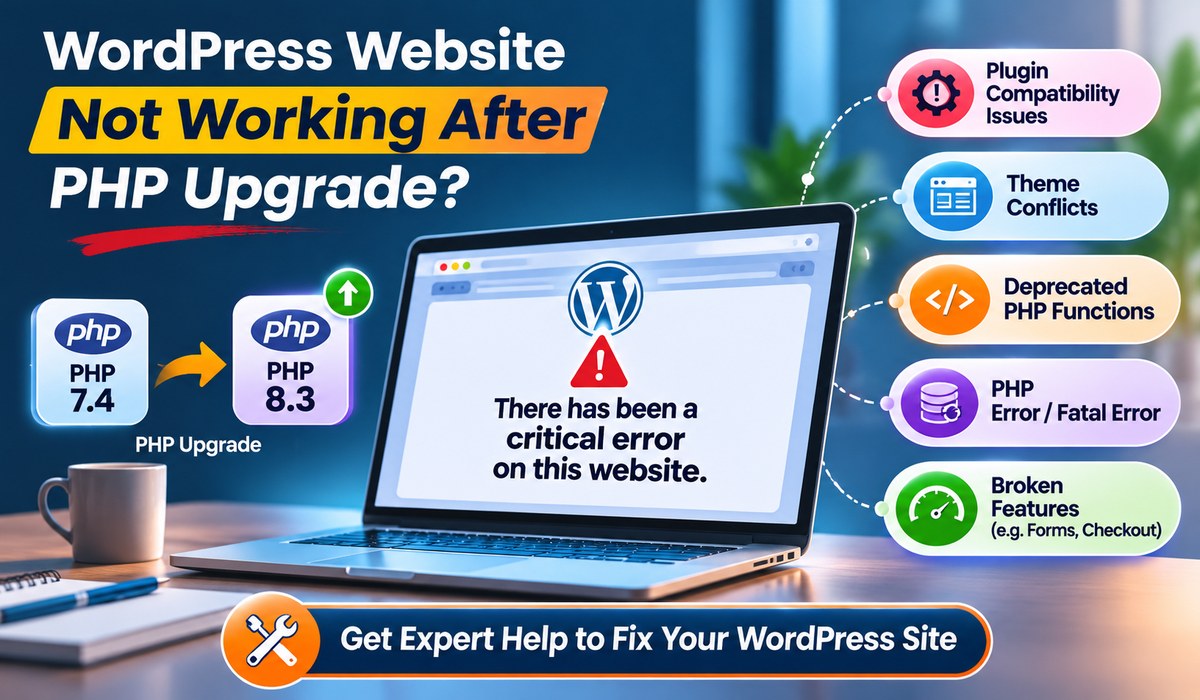
WordPress website broken after a PHP upgrade? Learn how to fix critical errors, plugin conflicts and PHP compatibility issues. Get WordPress support in Singapore.
WordPress website broken after a PHP upgrade? Learn how to fix critical errors, plugin conflicts and PHP compatibility issues. Get WordPress support in Singapore.
Protect your business from cyberattacks with professional website maintenance, website support, malware removal, website security and website upgrade services in Singapore.
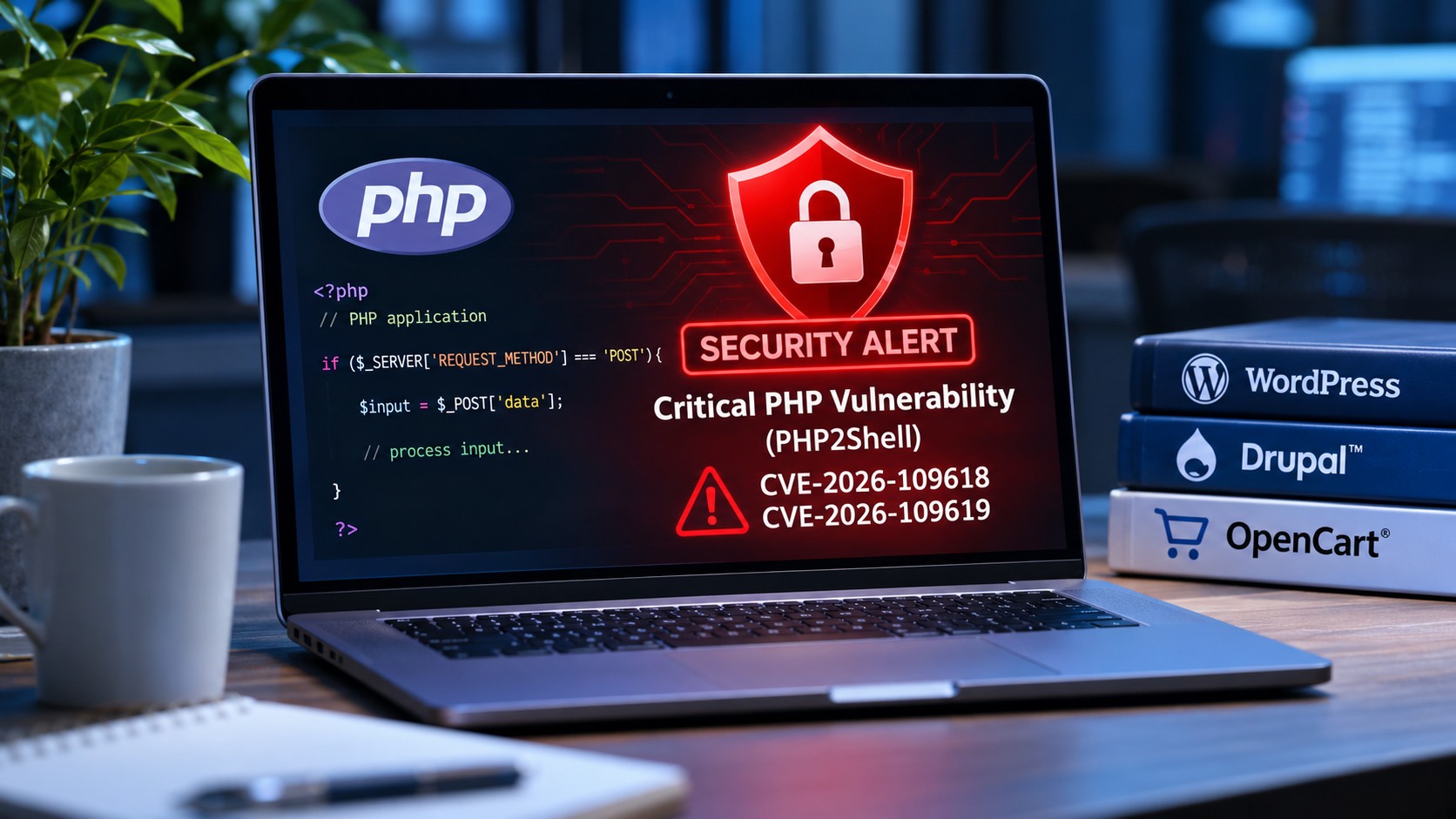
Discover how the latest PHP2Shell security vulnerabilities affect WordPress, Drupal and OpenCart websites, and what website owners should do to stay protected.
WhatsApp us