Fix the WordPress Too Many Redirects Error
Before editing your website, test it in an incognito or private browser window. Browser cookies can retain an outdated redirect instruction, especially after a recent switch from HTTP to HTTPS or a domain update.
Clear your browser cache and cookies for the affected domain, then test the site again. Also try another browser and a mobile connection. If the website works in private mode but not in your usual browser, the problem may be local rather than on the server.
What Causes the WordPress Too Many Redirects Error?
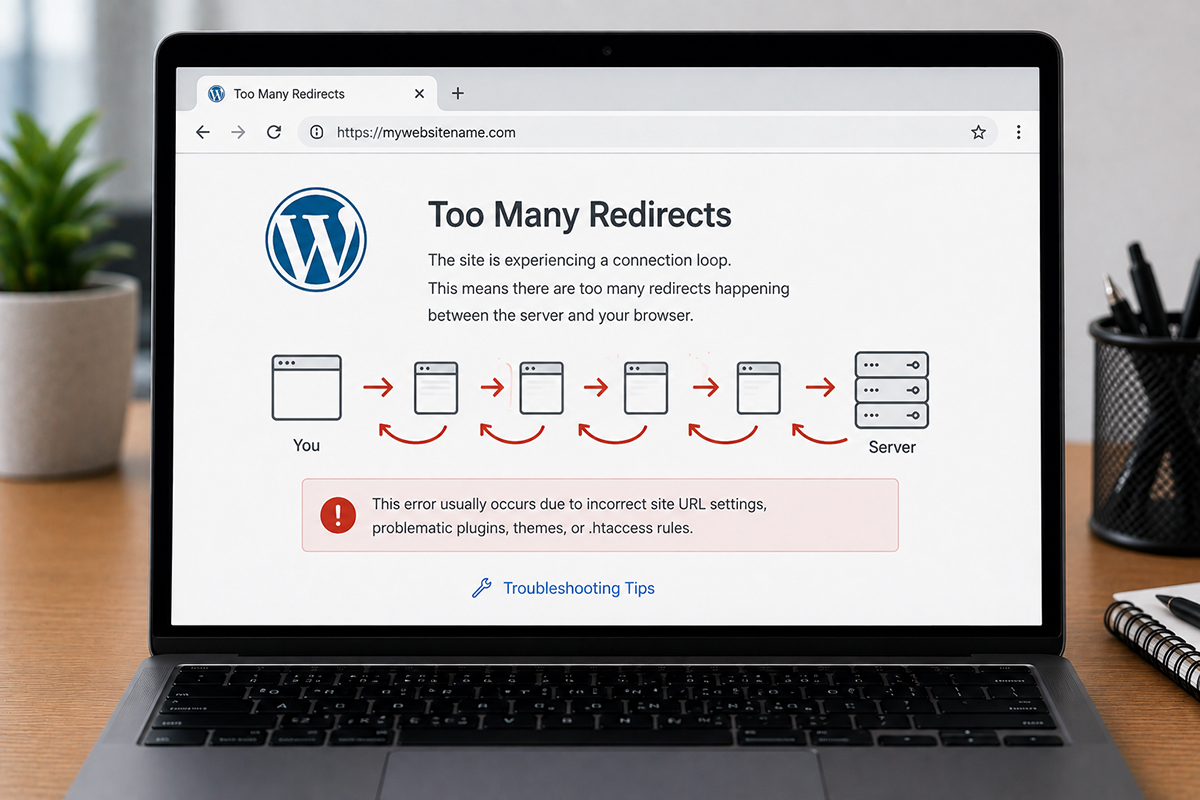
A redirect tells a browser that a page has moved. For example, a visitor who enters http://yourdomain.com may be redirected to https://www.yourdomain.com. That is normal.
The problem starts when one setting sends the visitor to a different version of the address and another setting sends them back. The browser eventually stops the loop and displays messages such as:
- “ERR_TOO_MANY_REDIRECTS” in Google Chrome
- “The page isn’t redirecting properly” in Firefox
- “Too many redirects” in Safari
Common causes include incorrect WordPress URLs, expired browser cookies, conflicting SSL settings, cache rules, redirect plugins, or server-level rules in the .htaccess file. It can also occur after a website migration, domain change, hosting move, WordPress update, or CDN setup.
Fixing Too Many Redirects Error in WordPress
#1 First, Confirm the Problem Is Not Your Browser
Before editing your website, test it in an incognito or private browser window. Browser cookies can retain an outdated redirect instruction, especially after a recent switch from HTTP to HTTPS or a domain update.
Clear your browser cache and cookies for the affected domain, then test the site again. Also try another browser and a mobile connection. If the website works in private mode but not in your usual browser, the problem may be local rather than on the server.
If customers are reporting the same issue, assume it is site-wide and continue with the checks below.
#2 Check Your WordPress Address Settings
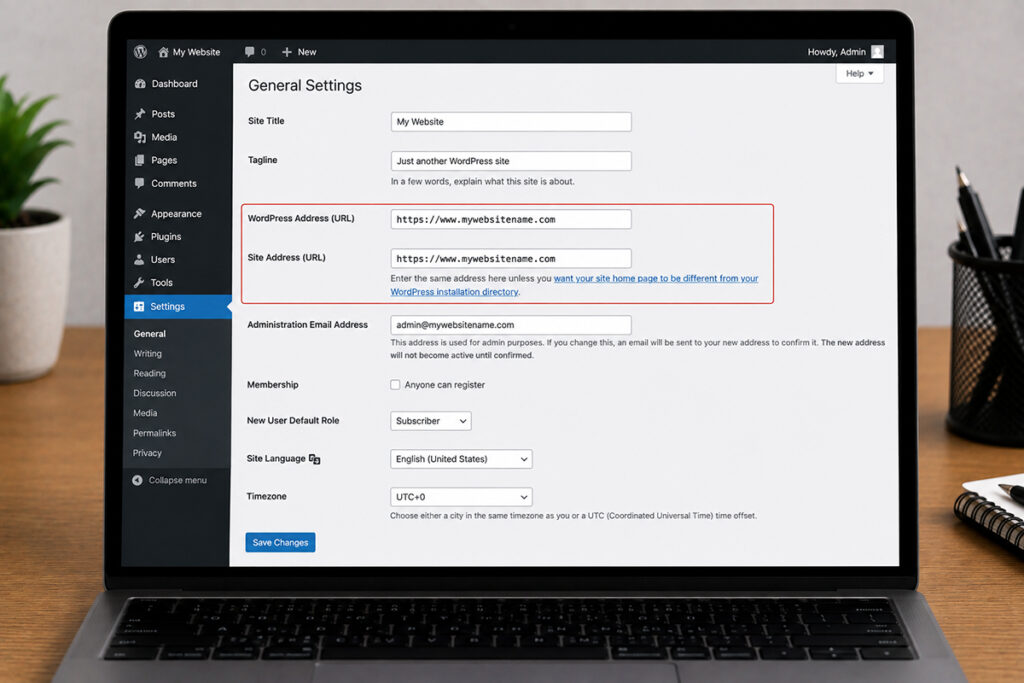
Incorrect site URLs are one of the most frequent causes of a WordPress redirect loop. WordPress has two key address fields:
WordPress Address (URL) – where the WordPress core files are installed
Site Address (URL) – the public address visitors use
Go to Settings > General in the WordPress dashboard and review both fields. Check whether your chosen live URL uses:
- https instead of http
- www or non-www, but not both
- The correct domain spelling and extension
If the redirect loop blocks wp-admin access, you may need to define the correct URLs in the wp-config.php file. Your web developer or website maintenance provider can add the proper WordPress home and site URL values directly to this file.
#3 Review SSL and HTTPS Redirect Settings
Many businesses enable an SSL certificate to protect forms, payments, and visitor data. However, HTTPS redirects can clash when they are enabled in more than one place.
For example, your hosting panel may force HTTPS while a WordPress plugin also forces HTTPS. A CDN may then apply another redirect rule. Instead of improving security, these overlapping rules can send browsers in circles.
Check each layer that may control SSL:
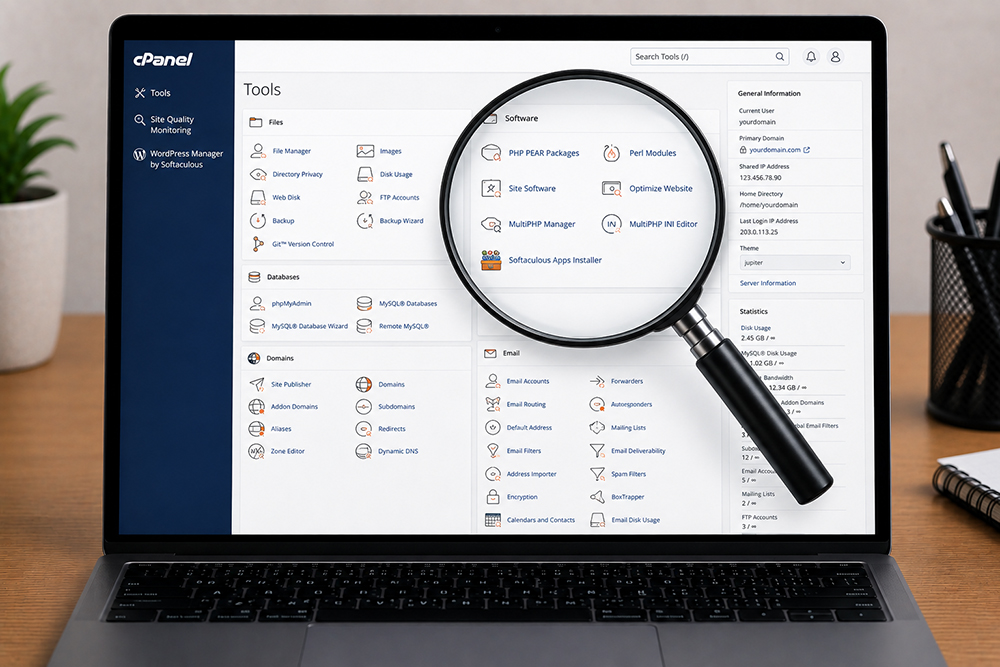
- Your hosting control panel
- Your CDN or security platform
- Your WordPress SSL or security plugin
- Your .htaccess file or server configuration
Choose one primary place to force HTTP traffic to HTTPS. For many small business sites, the hosting server or CDN is the cleanest option because it works before WordPress and does not rely on a plugin being active.
#4 Clear Every Cache Layer
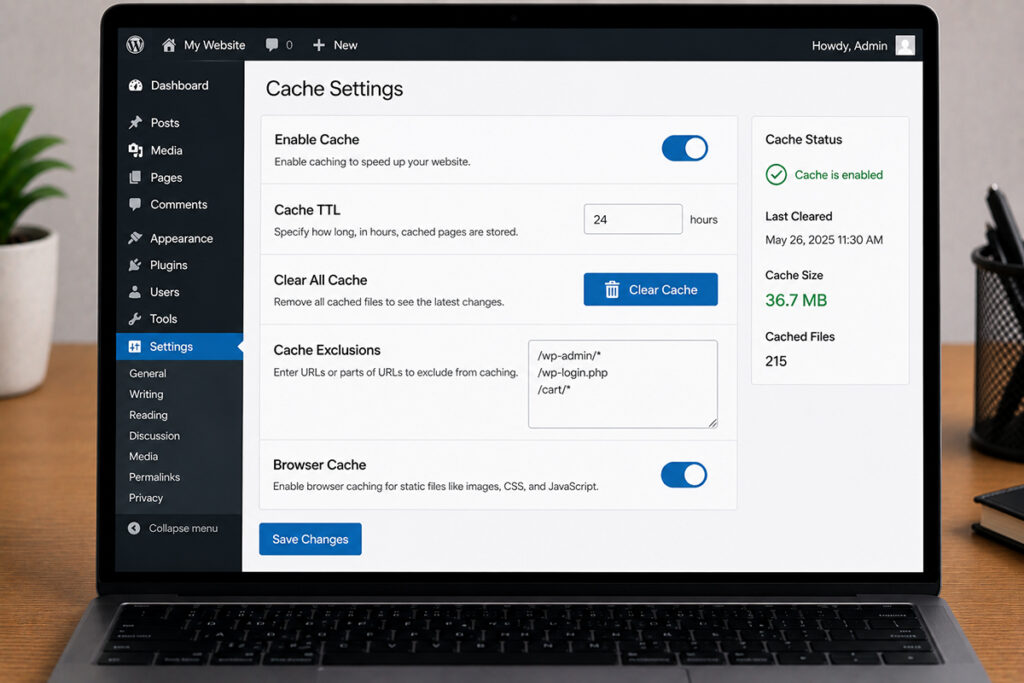
Caching speeds up websites, but it can preserve old redirects long after settings have changed. Clearing only the WordPress cache may not be enough.
Purge the cache in your caching plugin, hosting dashboard, CDN, and browser. If your site uses a managed WordPress host, look for server cache controls in the hosting portal.
Be especially careful after changing any of the following:
Site URLs
Domain names
SSL certificates
Redirect rules
DNS or CDN settings
Once caches are cleared, test the homepage, contact page, login page, and a few important service or product pages. This helps identify whether the loop affects the whole website or only certain URL paths.
#5 Disable Redirect, Cache, and Security Plugins
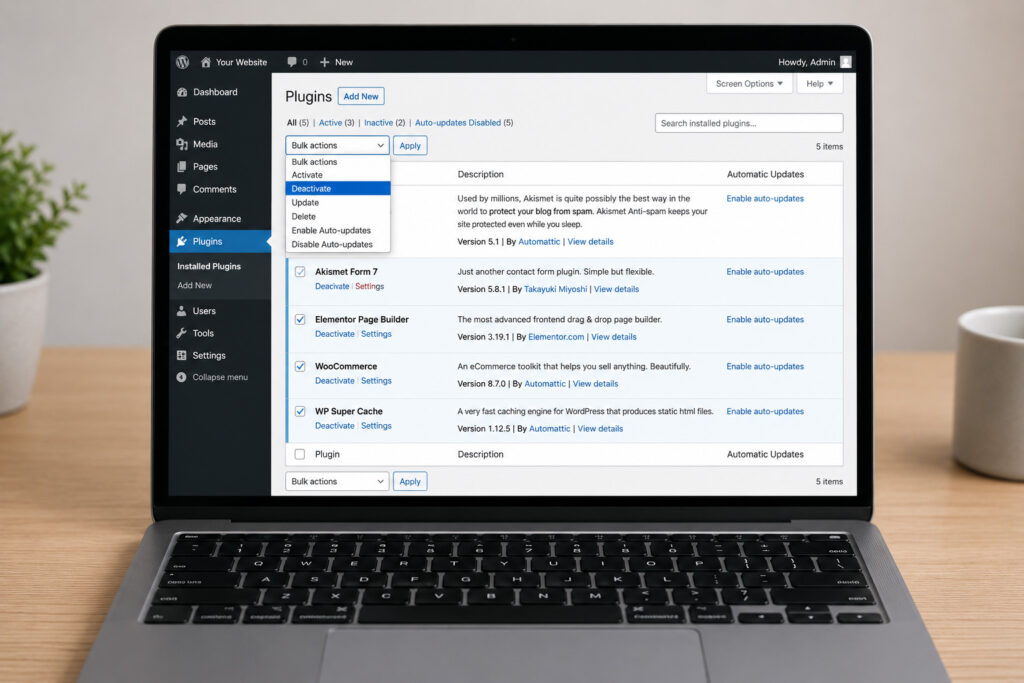
A plugin conflict can trigger the WordPress too many redirects error, particularly if you use several tools that handle caching, security, SSL, login protection, or URL redirects.
Start by disabling the most likely plugin from the WordPress dashboard. If you cannot log in, use your hosting file manager or FTP to rename the plugin folder inside wp-content/plugins. WordPress will deactivate that plugin automatically when it cannot find the folder.
Test the website after each change. Once you identify the conflict, update the plugin, review its redirect settings, or replace it with a better-supported alternative. Keeping abandoned plugins on a business site is rarely worth the risk.
#6 Check CDN and Proxy Settings
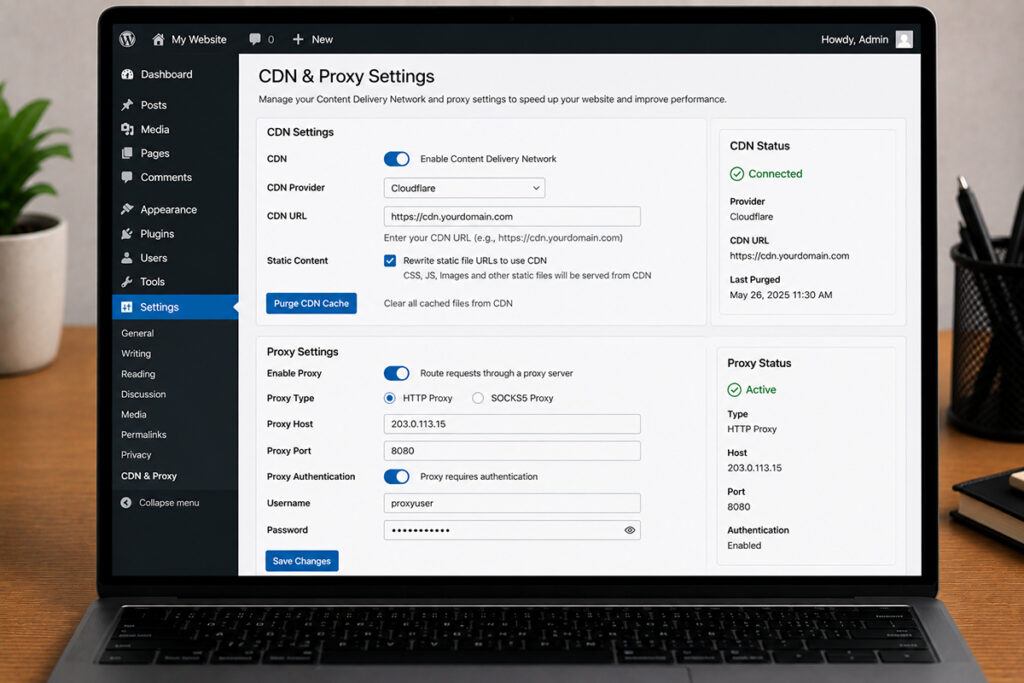
A CDN can improve website performance and security, but a proxy configuration can complicate HTTPS detection. WordPress may believe a visitor is using HTTP while the CDN tells the browser to use HTTPS, creating a back-and-forth loop.
Review your CDN SSL mode, forwarding rules, page rules, and redirect rules. Ensure the SSL setting matches the certificate installed on your origin server. Avoid stacking similar redirect rules across the CDN, host, and WordPress plugin.
When to Get Professional WordPress Support
A redirect loop is straightforward when there is one obvious setting. It becomes more complex when the issue involves DNS, server rules, a CDN, malware, a migration, or an eCommerce checkout flow.
Professional WordPress support is a sensible option when the site is generating leads or sales and downtime is already affecting revenue. A proper technical check should review the URL structure, SSL certificate, plugins, hosting configuration, caching layers, and redirect history before making changes.