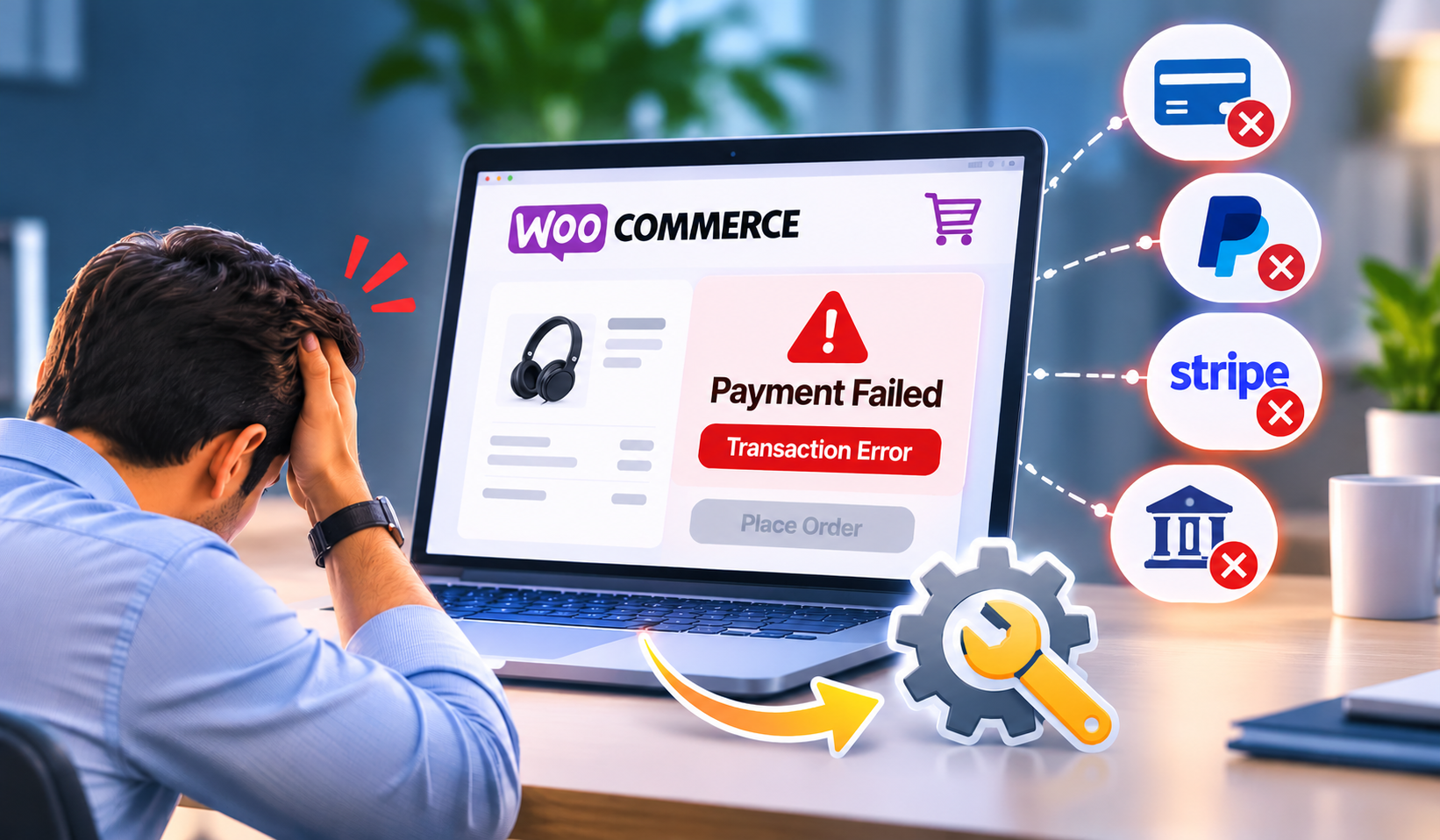

Is your WordPress site showing nothing but a white screen? A blank page can look alarming, especially when customers, leads, and campaign traffic are heading to your website.
Knowing how to fix a WordPress website showing a blank page error helps you restore access quickly and avoid losing business. This issue is often called the WordPress White Screen of Death. It can affect the entire site, the WordPress admin area, a single page, or only certain visitors.
WordPress displays a blank page when it hits a critical error but cannot show the error message on screen. In many cases, the site has run out of server resources, encountered broken code, or loaded a plugin or theme that conflicts with another part of the website.
Common causes include:
The fastest way to stop guessing is to review the actual error. WordPress can write PHP errors to a log file without displaying technical messages to website visitors.
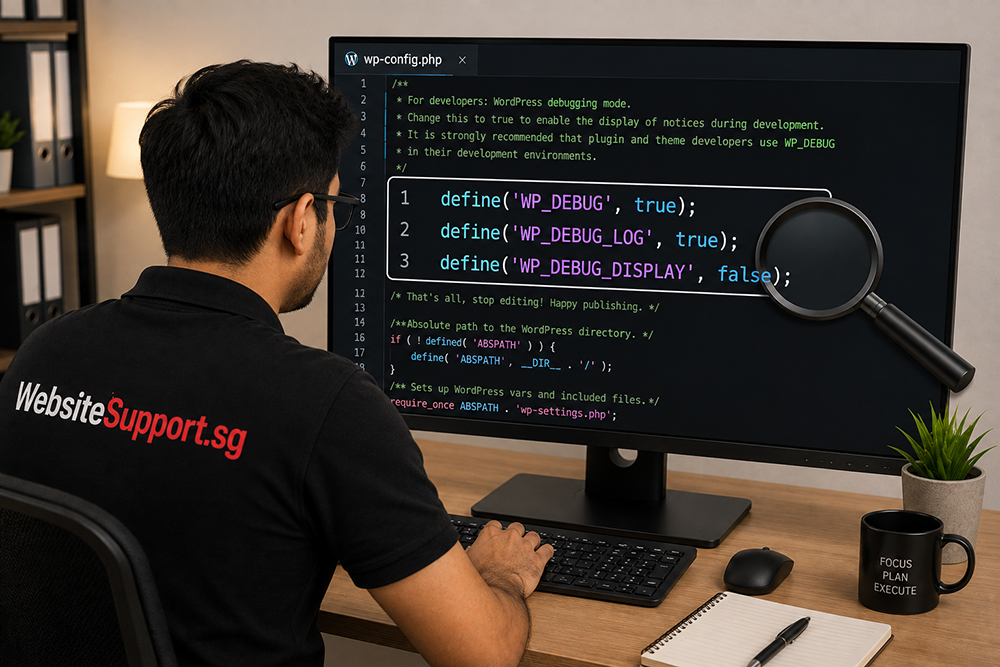
Using your hosting file manager or FTP, find the wp-config.php file in your WordPress root folder. Look for the line that says WP_DEBUG and update it as follows:
define(‘WP_DEBUG’, true);
define(‘WP_DEBUG_LOG’, true);
define(‘WP_DEBUG_DISPLAY’, false);
Reload the affected page, then check the debug.log file inside the wp-content folder. Errors often name the plugin, theme, file, or PHP function responsible.
Do not leave debug mode enabled permanently on a live business site. The log can grow quickly, and exposed error details are not helpful for security or customer confidence. Once the issue is resolved, set WP_DEBUG back to false.
A plugin conflict is one of the most common reasons for a WordPress blank page after an update.
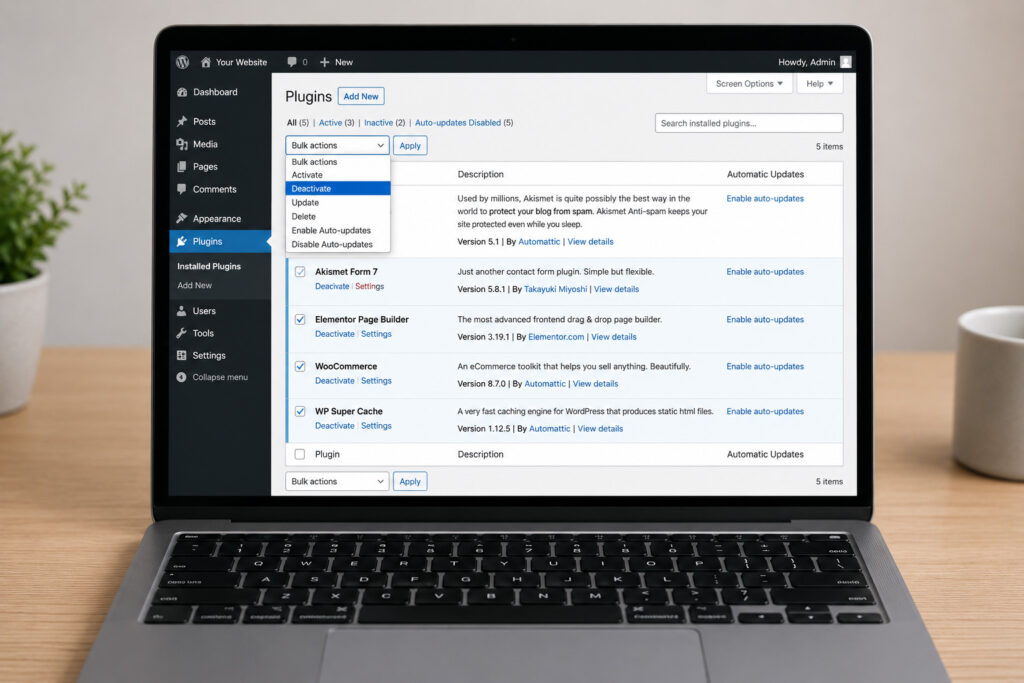
If you can access the WordPress dashboard, deactivate all plugins first. Then reload the website. If the site returns, reactivate plugins one at a time and test after each activation. The plugin that causes the blank page to return is the likely source of the problem.
If the dashboard is unavailable, use your hosting file manager or FTP:
Once identified, update, replace, roll back, or remove the plugin. If it handles an important business function, such as payments, forms, bookings, or analytics, test a replacement on a staging site before making permanent changes.
If disabling plugins does not fix the issue, your active theme may be causing the WordPress website blank page error. This is especially likely after a theme update, a PHP version change, or edits to custom theme files.
From the WordPress dashboard, activate a default WordPress theme, such as Twenty Twenty-Four or another current default theme. If the site loads, the issue lies within your original theme or its customizations. Get in touch with a website support provider to repair your theme.
When wp-admin is inaccessible, rename the active theme folder under wp-content/themes. WordPress may automatically fall back to an installed default theme. If no default theme is available, install one through your hosting tools or restore a known working copy.
A complex page builder, a large WooCommerce store, or several resource-heavy plugins can exhaust the memory allocated to WordPress. When this happens, the server may return a blank page instead of a useful error.
You can try adding this line to wp-config.php:
define(‘WP_MEMORY_LIMIT’, ‘256M’);
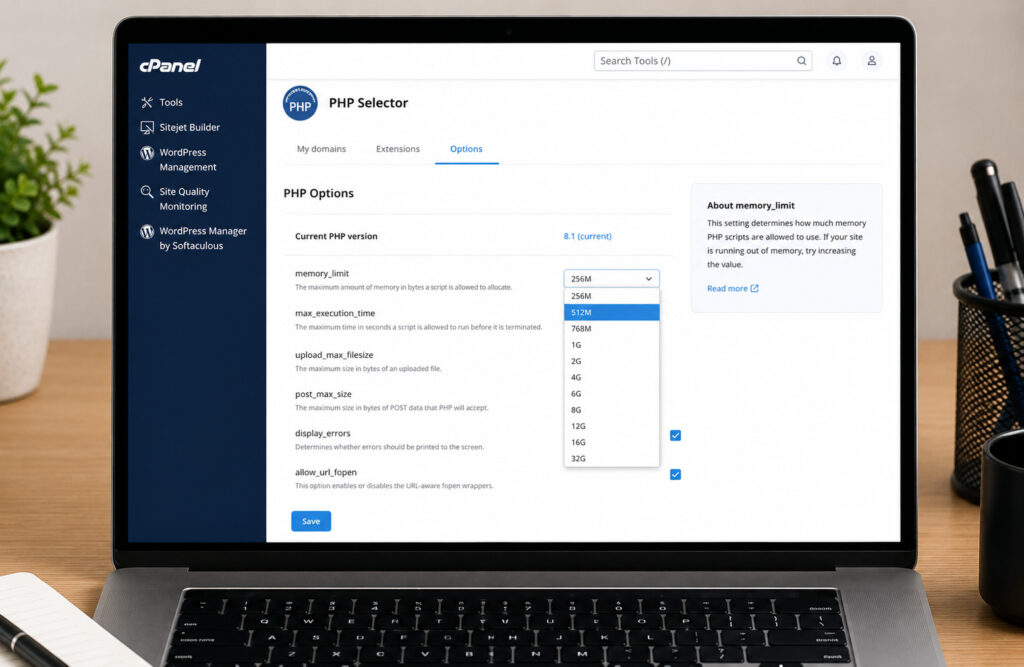
Some hosting providers control memory limits at the server level, so this change may not take effect on its own. Check your hosting control panel for PHP settings, or ask your host to increase the available memory.
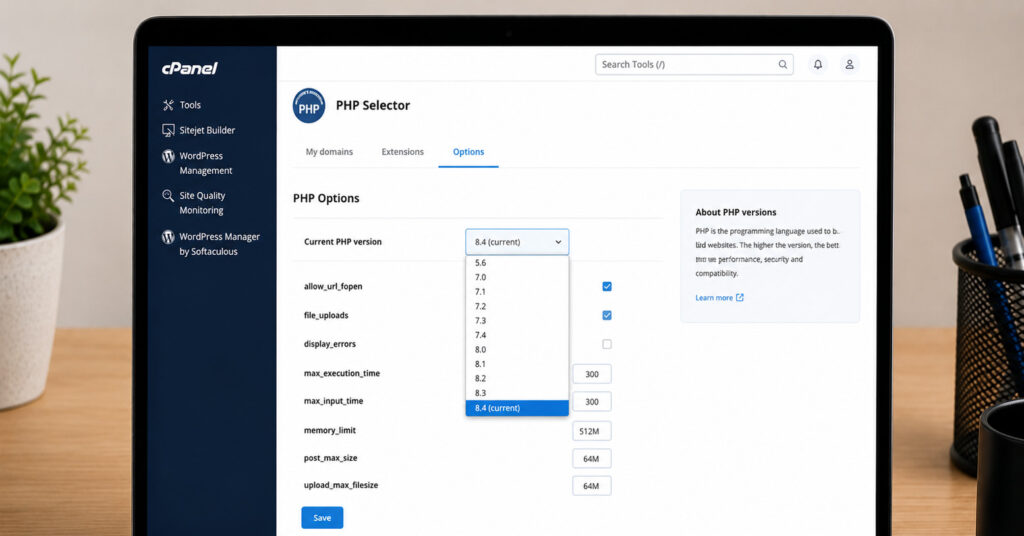
WordPress, themes, and plugins must work with your server’s PHP version. An old PHP version can create security and performance concerns. A very new version, however, can reveal compatibility problems in outdated themes or plugins.
Check your current PHP version in your hosting panel or WordPress Site Health area. Then review which major updates happened shortly before the blank page appeared. If the issue started immediately after changing PHP versions, temporarily switch back to the previous supported version while you update incompatible components.
Do not keep an unsupported PHP version as a long-term solution. It may restore the site today while leaving it vulnerable tomorrow. Plan a proper update of the affected theme, plugin, or custom code. Engage website support to plan your website upgrade.
Some blank page errors are simple. Others point to deeper issues in server settings, custom code, malware, database tables, or third-party integrations. If your site generates leads, runs ads, accepts payments, or supports daily operations, extended trial and error can cost more than professional support.
Get professional website support in Singapore promptly when:
A WordPress maintenance partner can diagnose the root cause, restore the site safely, test the fix, and put monitoring and backup processes in place. Innomedia supports businesses that need practical WordPress troubleshooting, malware removal, upgrades, and ongoing website maintenance without juggling multiple vendors.


Get an affordable quote for services like website maintenance, website repair, website upgrade, & website malware removal.

WordPress website broken after a PHP upgrade? Learn how to fix critical errors, plugin conflicts and PHP compatibility issues. Get WordPress support in Singapore.
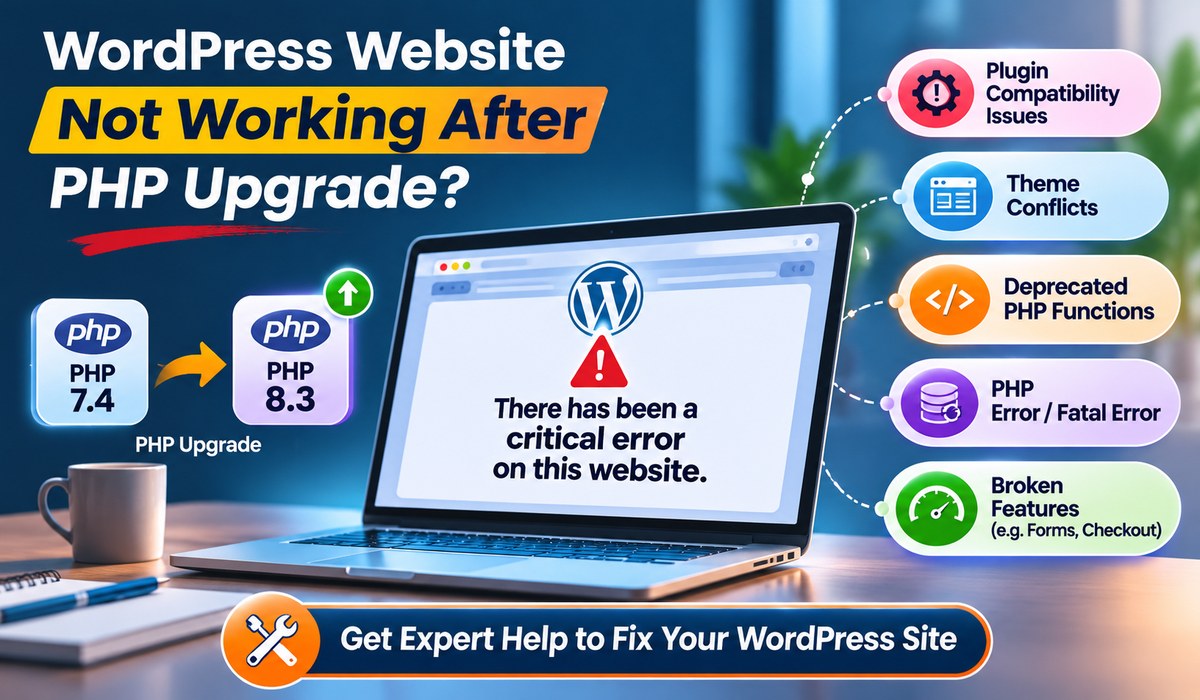
WordPress website broken after a PHP upgrade? Learn how to fix critical errors, plugin conflicts and PHP compatibility issues. Get WordPress support in Singapore.

Protect your business from cyberattacks with professional website maintenance, website support, malware removal, website security and website upgrade services in Singapore.

Discover how the latest PHP2Shell security vulnerabilities affect WordPress, Drupal and OpenCart websites, and what website owners should do to stay protected.
WhatsApp us