Fixing “WordPress Admin Login Not Working” Issue
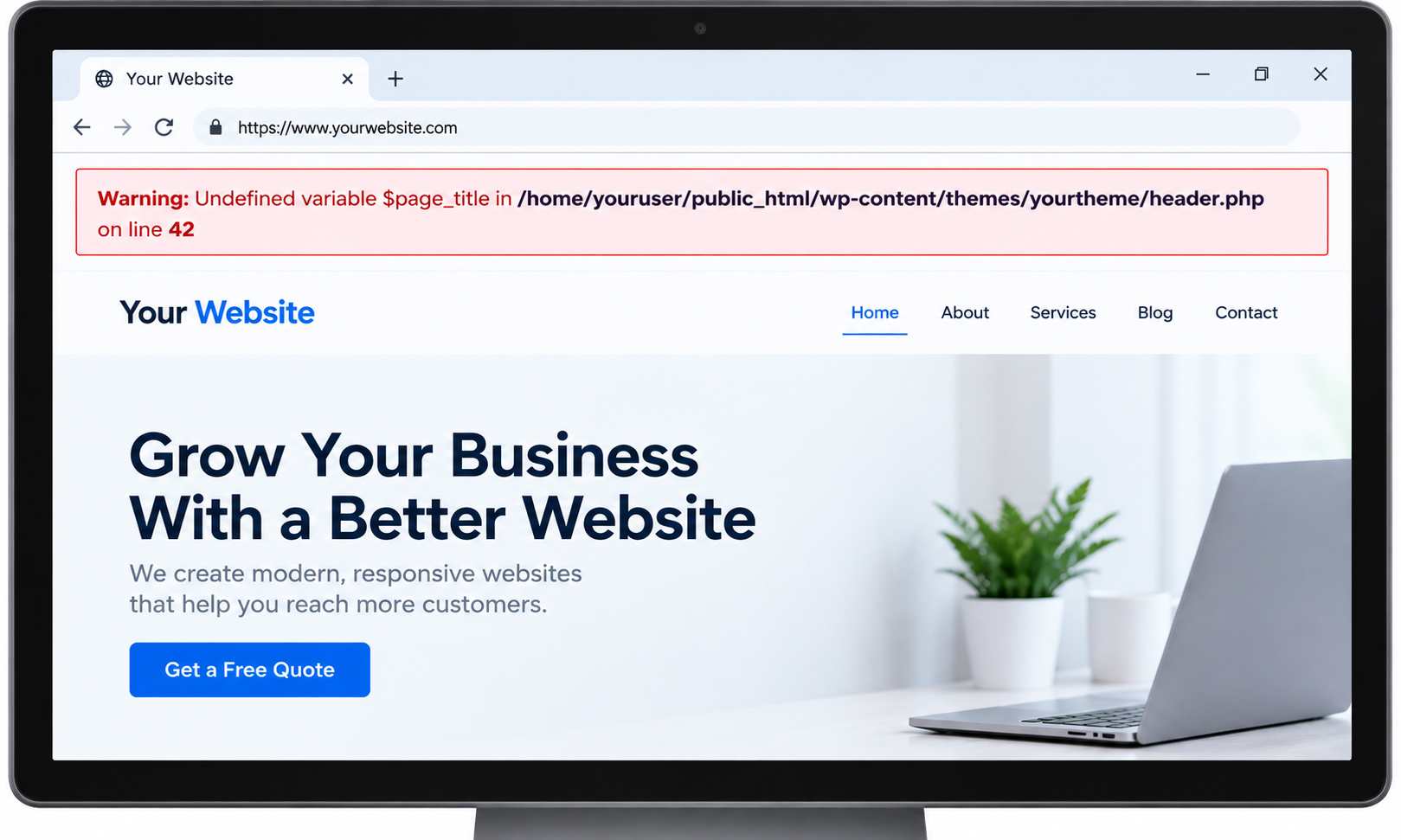
A PHP warning appearing at the top of a live website can make an otherwise professional business look unmaintained. If you are asking, “why is my WordPress website showing PHP warning messages?”, the short answer is that a theme, plugin, custom code snippet, or server setting has detected a problem and is displaying it publicly.
The warning may not always stop your site from working. However, it can expose file paths, confuse visitors, interfere with checkout pages, and point to a bigger compatibility or security issue. The right response is not simply to hide the message. It is to identify what is generating it, correct the underlying problem, then make sure development errors are not shown to customers.
What a PHP warning means on a WordPress site
WordPress is built with PHP, the server-side language that runs your pages, forms, WooCommerce checkout process, administrator area, and much of your website’s functionality. A PHP warning means the server has found code that may not be functioning as intended but has not necessarily reached a complete failure.
You may see messages such as “Warning,” “Notice,” “Deprecated,” or “Fatal error.” They do not all have the same impact:
- A notice often signals a minor coding issue, such as a variable being used before it is defined.
- A warning indicates that a function, file, or setting may be missing or used incorrectly. Parts of the page may still load.
- A deprecated message means the code uses an older PHP function that may stop working after a future upgrade.
- A fatal error stops a script from running and can take down a page, an online store feature, or the whole site.
Even a warning that seems harmless deserves attention. It may appear after a hosting migration, WordPress update, PHP version change, or plugin installation because those changes expose outdated code that had been running quietly in the background.
Why your WordPress website is showing PHP warning messages
#1 Error display is enabled on the live server
The most common reason visitors can see PHP messages is that error display has been enabled in WordPress or at server level. Developers use this setting when testing a website because it makes troubleshooting faster. On a production website, it should normally be disabled.
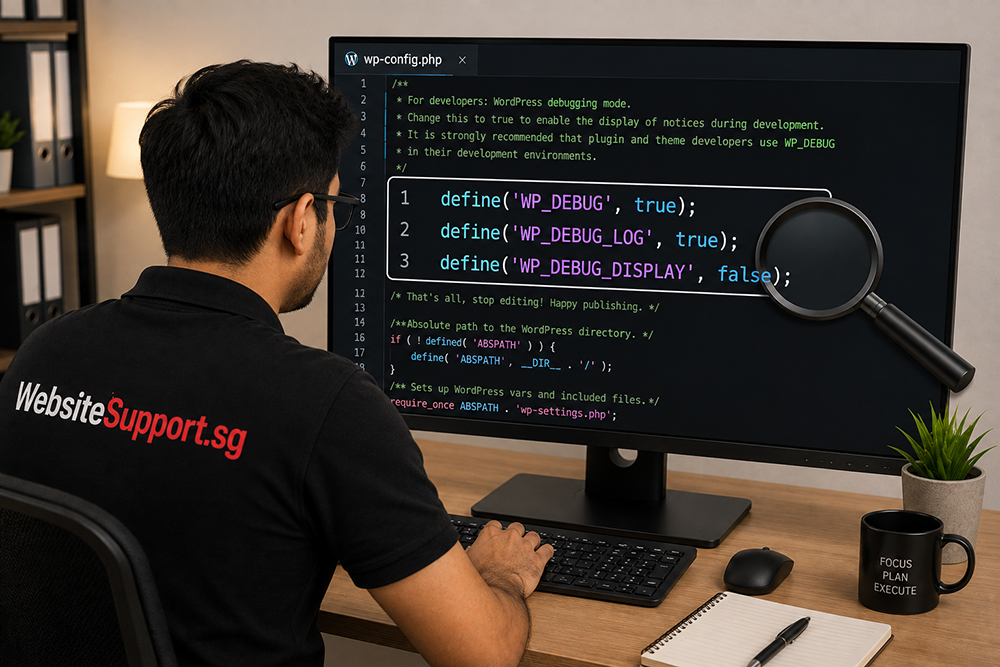
WordPress debugging settings are controlled in the site configuration file. When debugging is active and display settings are not correctly configured, PHP messages can appear in the page header, footer, or dashboard.
Turning off public display protects your visitors, but it does not repair the issue. A good setup logs errors privately so a developer can investigate them without placing technical details in front of potential customers.
#2 A plugin or theme is outdated or incompatible
WordPress plugins and themes are frequent sources of PHP warnings, particularly if they have not been updated for current versions of WordPress or PHP. This is common on business sites that were built several years ago and have received only occasional updates.
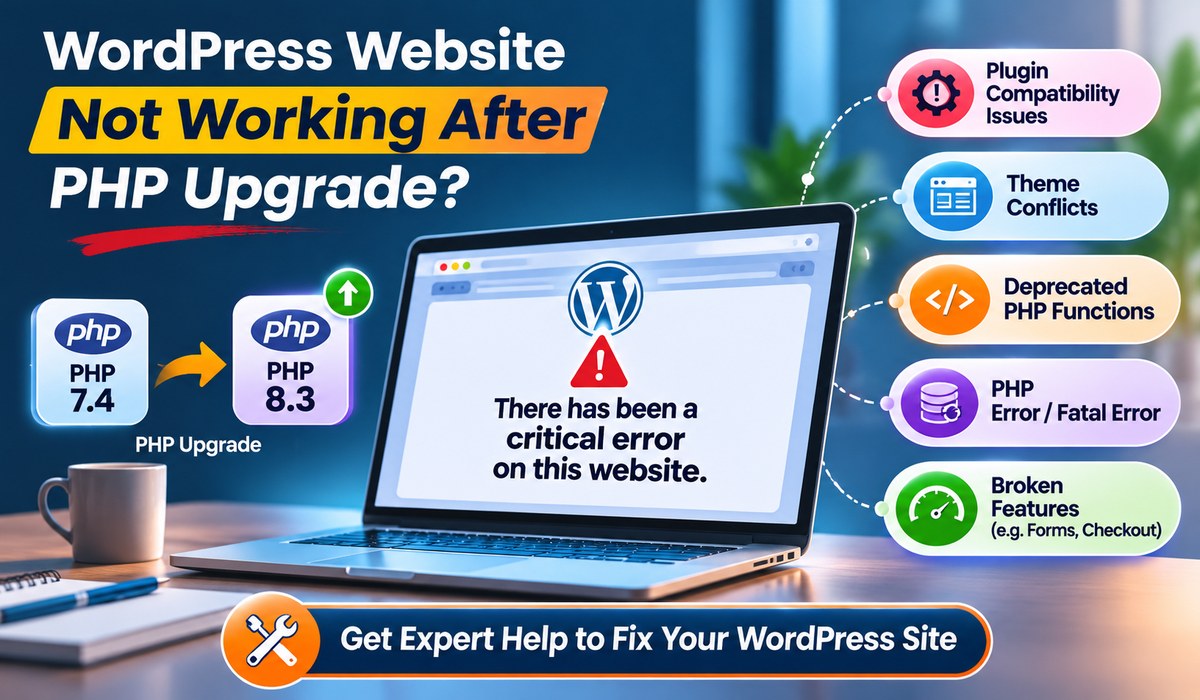
For example, a booking plugin may rely on an old PHP function. It may continue to work on PHP 7.4, then start producing warnings when your host moves the server to PHP 8.1 or 8.2. An abandoned theme can cause similar problems, especially where it includes custom page-builder code or bundled plugins.
The warning usually names a file path. That path can tell a developer whether the problem comes from WordPress core, a theme, a plugin, or custom functionality.
#3 Your PHP version changed
Hosting providers regularly update PHP to improve security, speed, and support. That is generally good for your website, but an old extension, theme, or custom script may not be compatible with the new version.
There is a trade-off here. Staying on an outdated PHP version may temporarily remove the warnings, but it can leave your site less secure and eventually unsupported. Moving immediately to the newest PHP version without testing can break older components. The best option is usually to update and test your WordPress components first, then run the site on a supported PHP version.
#4 A recent update created a conflict
A warning that starts immediately after an update is a useful clue. A new version of a plugin may conflict with your theme, another plugin, WooCommerce, or custom code added by a previous developer.
Do not assume the most recently updated item is defective. Sometimes an update correctly identifies code that was already outdated elsewhere. Checking the error log and testing changes in a staging environment provides a much clearer answer than rolling back multiple updates on a live website.
#5 Custom code or snippets need maintenance
Many WordPress sites contain code added for tracking pixels, contact forms, product pricing rules, custom post types, redirects, membership access, or third-party integrations.
A small code snippet copied into a theme file years ago can create repeated warnings across the site. If custom code is placed directly in the parent theme, it may also be overwritten during a theme update. Well-managed sites use child themes, custom plugins, or controlled snippet management where appropriate, along with documented changes and regular testing.
How to fix PHP warnings without disrupting your business
Start by taking a full backup of your website files and database. This is essential if your site processes orders, leads, bookings, or membership data. A backup gives you a safe rollback point if an update reveals a larger conflict.
Next, record the full warning message, including the file path and line number. A screenshot is useful, but copy the text as well. The exact message helps identify whether the issue is caused by a plugin, theme, WordPress core file, or server configuration.
Then follow a controlled process:
- Check your WordPress, theme, and plugin update status. Update reputable components that are known to be compatible with your active PHP version.
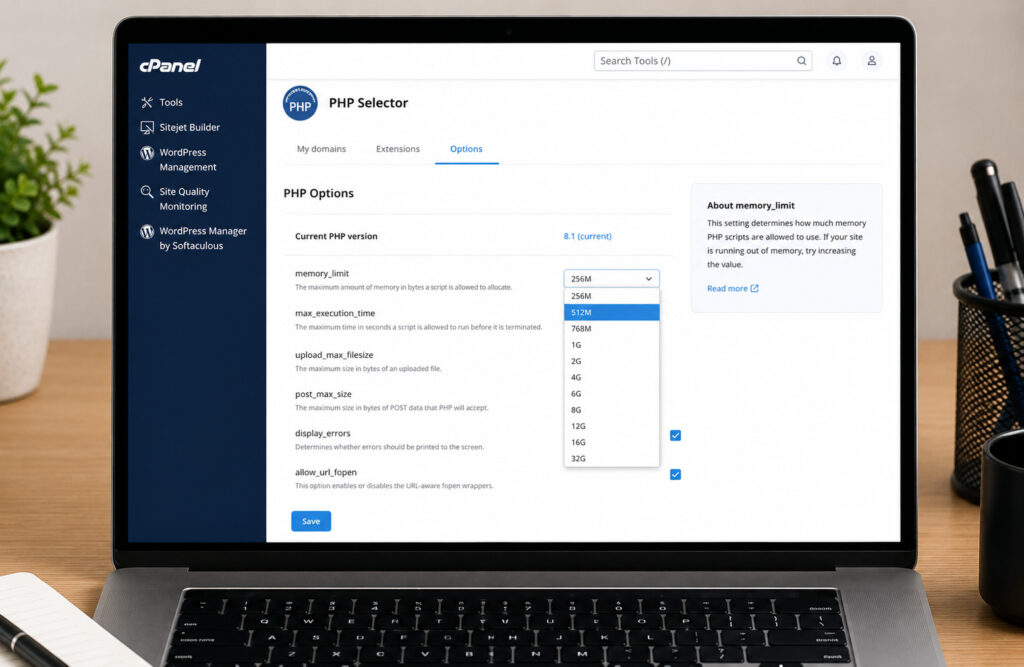
- Review your PHP version in the hosting control panel. Confirm that it is supported by your WordPress version and essential plugins.
- Enable private error logging rather than showing errors on the public site. Your developer can use the log to trace recurring messages.
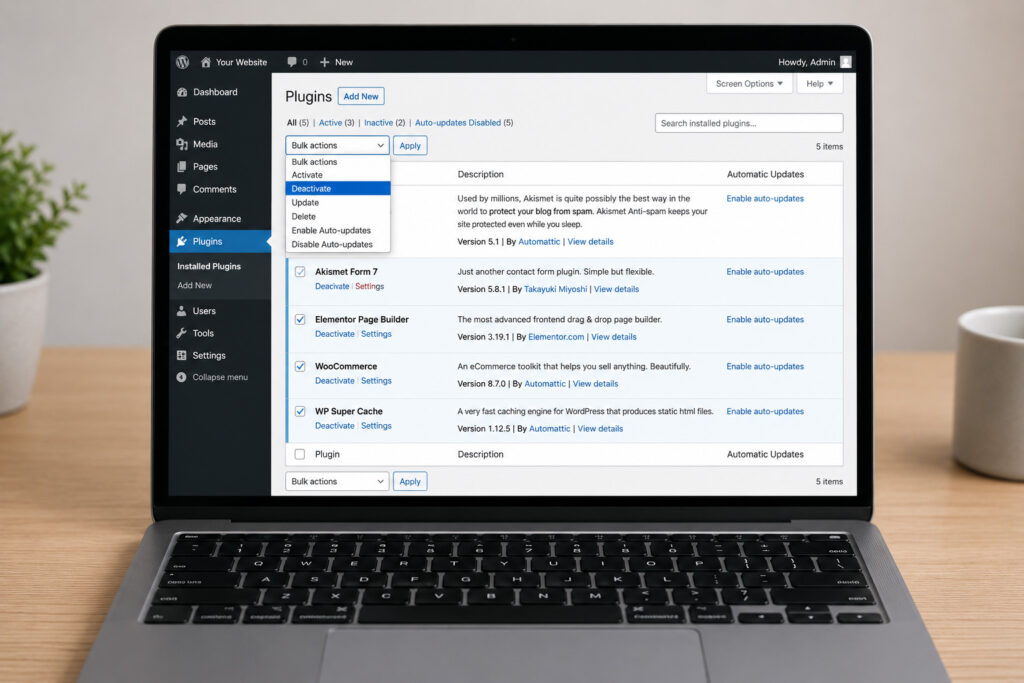
- Test suspected plugin or theme conflicts on a staging copy of the site. Deactivate one item at a time and verify key pages, forms, logins, and checkout functions.
- Review custom code, especially code related to the file named in the warning. Replace outdated functions instead of suppressing warnings permanently.
For a simple brochure website, this work may take little time. For a WooCommerce store, membership platform, or lead-generation site with CRM and advertising integrations, testing needs to be more careful. Your priority is to eliminate the warning without losing orders, enquiry tracking, payment capability, or campaign attribution.
When to involve a WordPress maintenance specialist
Professional help is worthwhile when warnings keep returning, appear on checkout or contact form pages, follow a malware cleanup, or occur after a server migration. It is also a sensible choice when no one on your team can safely test updates without risking the live site.
A WordPress maintenance specialist can review error logs, plugin and theme compatibility, PHP configuration, security status, and performance concerns as one connected issue. Innomedia can help businesses identify the source of recurring PHP warnings, apply safe updates, and put an ongoing maintenance process in place so technical problems are addressed before customers encounter them.