Home > WordPress Repair > WordPress Site Down? Here’s How To Fix It

WordPress Site Down? Here’s How To Fix It

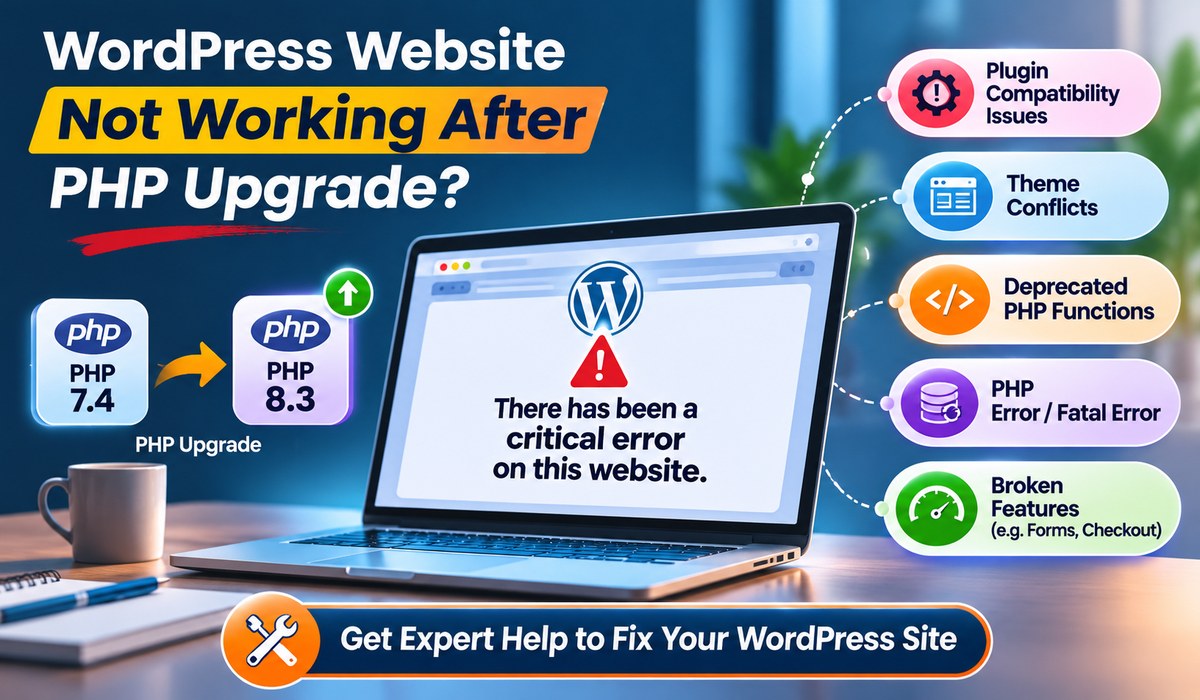
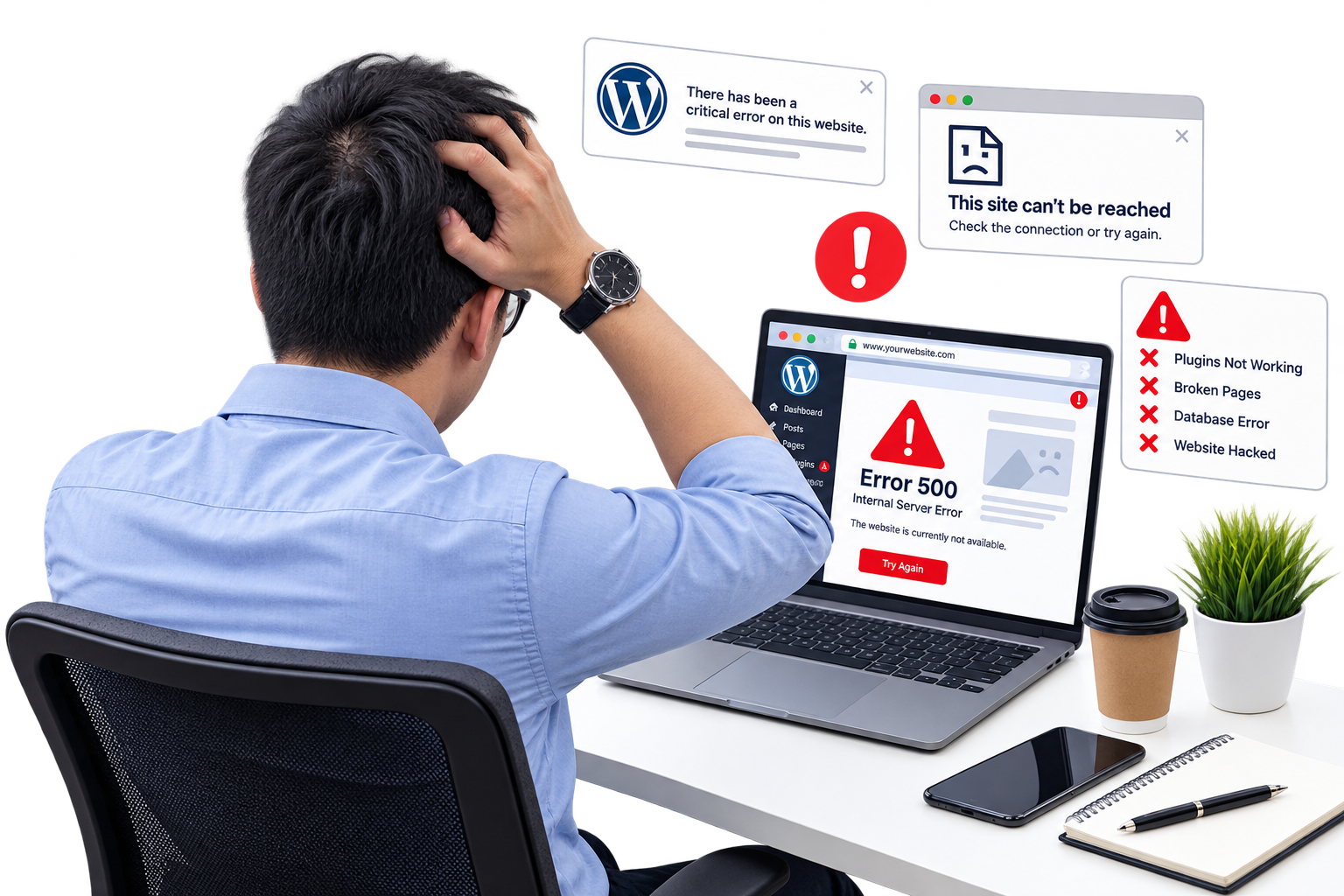
Is your WordPress website down? Is your site showing a white screen, a 500 error, or the dreaded “This site can’t be reached” message? 

website support

Identify the Error Before Trying Fixes

The error message gives valuable clues. Taking screenshots before troubleshooting helps your developer or support team work faster.

What Common Errors Usually Mean

  • Error establishing a database connection usually means WordPress cannot communicate with its database. Causes include incorrect database credentials, a down database server, or database corruption.
  • 500 Internal Server Error commonly relates to a faulty plugin, theme, PHP version conflict, damaged .htaccess file, or insufficient server memory.
  • White Screen of Death is often caused by a PHP fatal error, incompatible plugin, incompatible theme, or exhausted memory limit.
  • Briefly unavailable for scheduled maintenance means an update did not finish properly and left the site stuck in maintenance mode.
  • Redirect loops or “too many redirects” can result from an SSL issue, a mistaken site URL setting, caching conflicts, or a redirect rule in the server configuration.
  • Deceptive site ahead or a hacked-page warning should be treated as a security incident. Do not simply remove the visible malicious content and assume the job is complete. Malware can leave hidden backdoors, scheduled tasks, and infected files behind.

Fix A "WordPress Website Down" Problem
#1 Check Recent Changes to Your WordPress Site

Most WordPress failures have a timeline. Ask what changed shortly before the outage. A plugin update at 10:15 a.m. followed by a broken website at 10:20 a.m. is not proof, but it is a strong lead.

Review recent activity, including:

  • WordPress core, plugin, and theme updates
  • New plugins, themes, tracking scripts, or custom code
  • PHP or server configuration changes
  • DNS, SSL certificate, CDN, or firewall updates
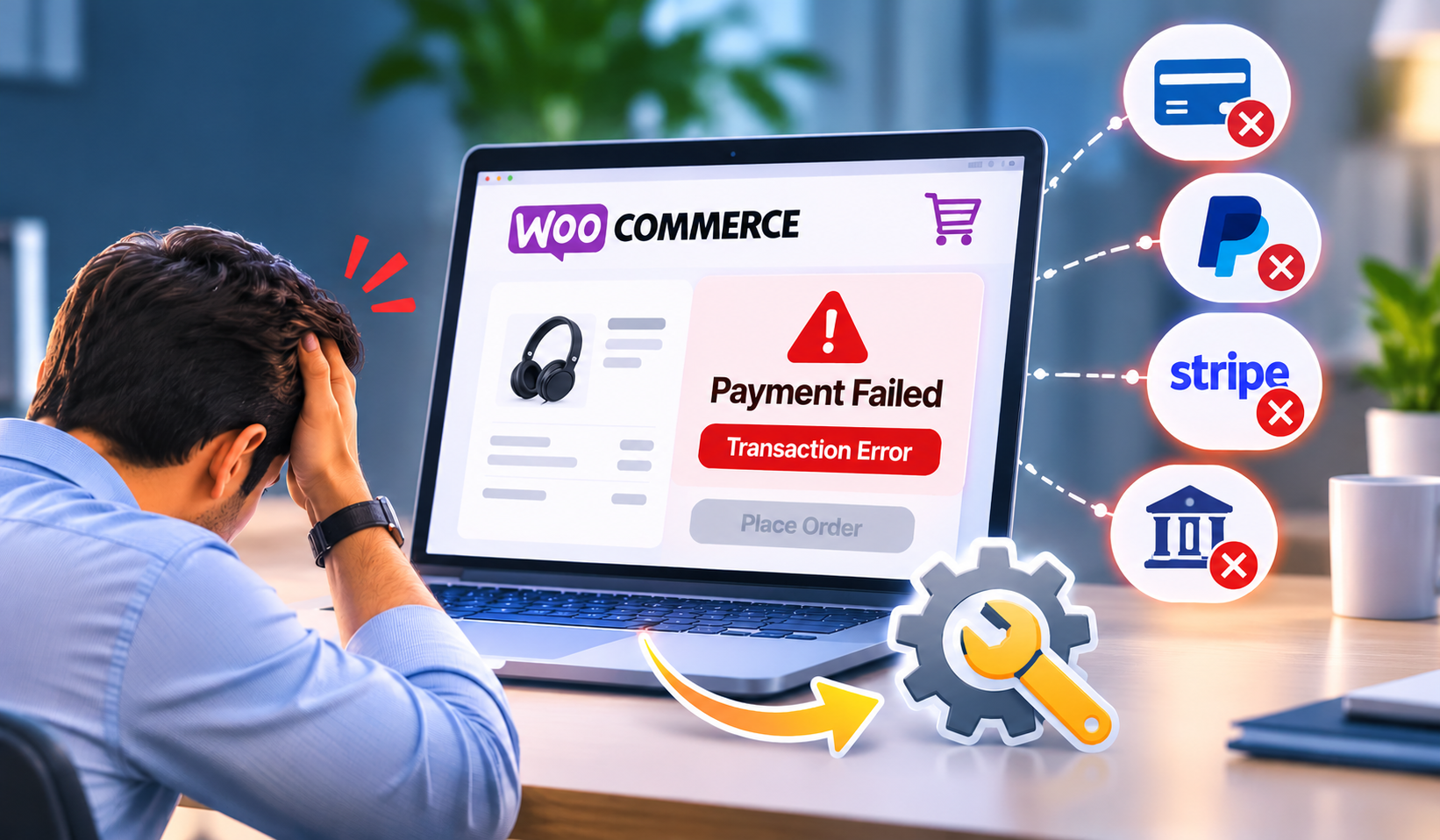
  • New WooCommerce extensions, payment gateway changes, or product imports
  • User account changes and unfamiliar administrator logins
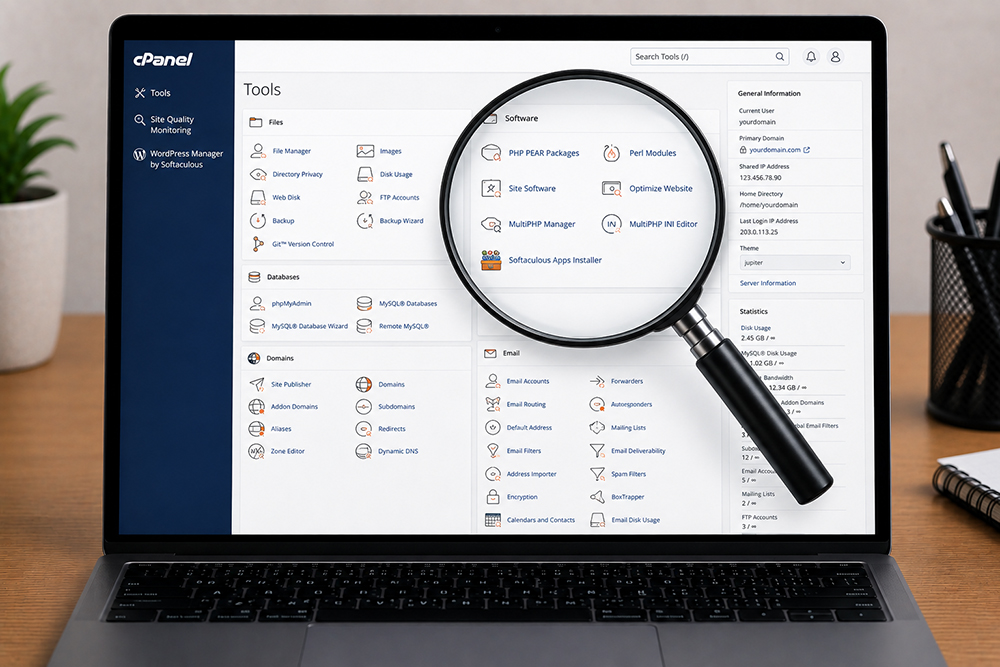
website hosting cpanel control panel
recover/restore your wordpress site from backup

#2 Restore a Backkup

A clean backup is usually the fastest recovery path when an update, code change, or malware infection has damaged the site. Restore only a backup created before the issue started, and confirm that it includes both website files and the database.

Before restoring, save a copy of the current files and database if possible. Recent orders, form submissions, new customer accounts, or content changes may exist in the current database. For a WooCommerce store, blindly restoring an old backup can remove recent order data. In that situation, a technical support team may need to repair the site while preserving current transactions.

#3 Disable a Suspected Plugin or Theme

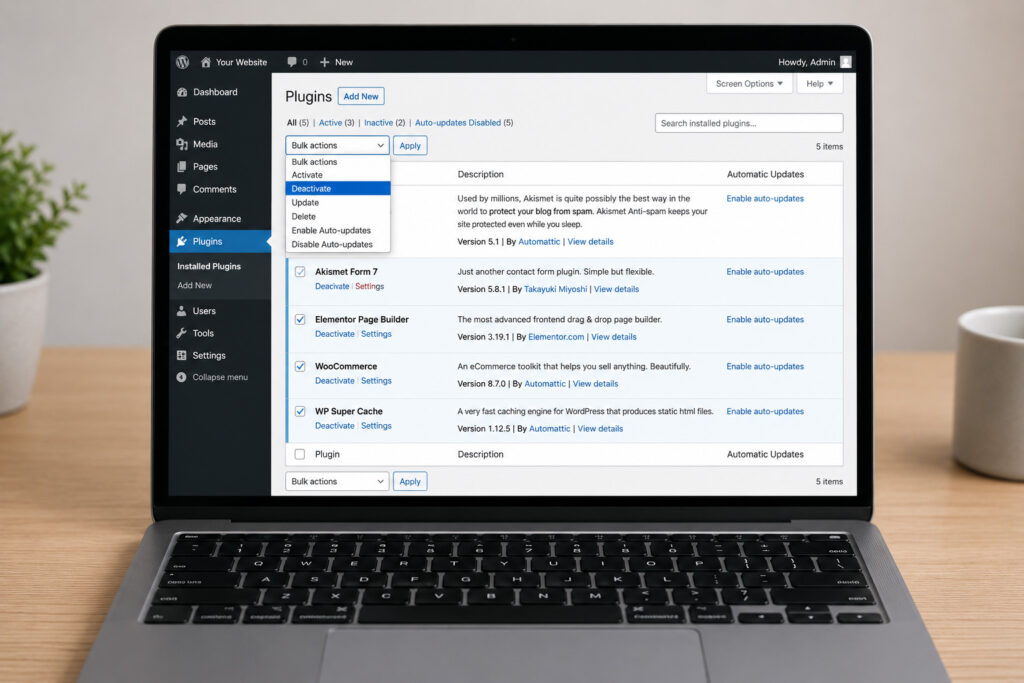
If you can access the WordPress dashboard, deactivate the plugin that was most recently updated or installed. If the dashboard is unavailable, use your hosting file manager or FTP to rename the relevant plugin folder inside wp-content/plugins.

If that does not work, temporarily rename the entire plugins folder to disable all plugins. Once the site returns, reactivate them one at a time to find the conflict. Do not leave every plugin disabled as a permanent solution. The real goal is to identify the incompatible extension, update it, replace it, or adjust the server environment.

A faulty theme can be tested by switching to a default WordPress theme. This may affect your branding temporarily, but it can confirm whether the active theme is responsible.

disable wordpress plugins
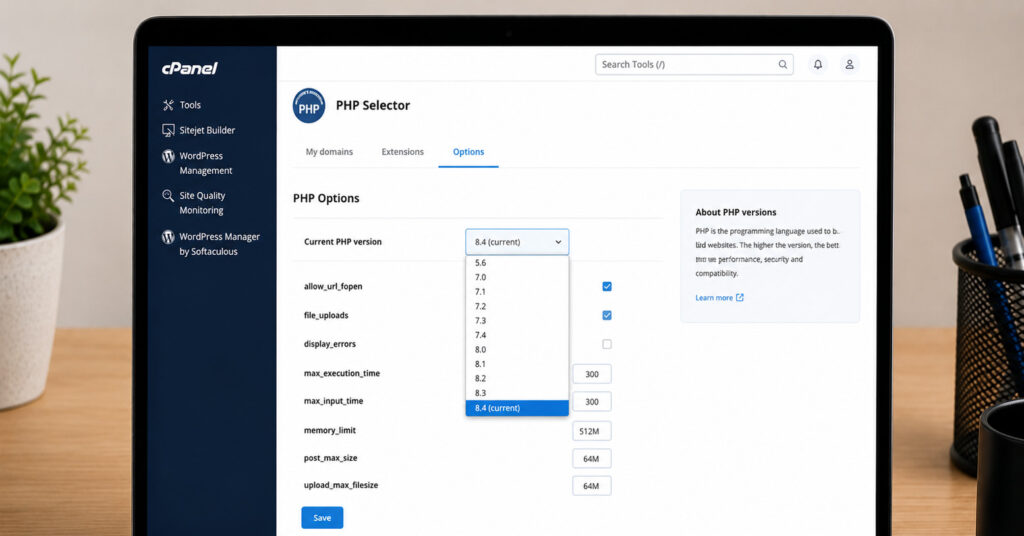
increase PHP version

#4 Review Error Logs and PHP Version

Hosting error logs often reveal the exact file and function that caused the crash. Look for PHP fatal errors, memory exhaustion messages, missing files, and permission errors.

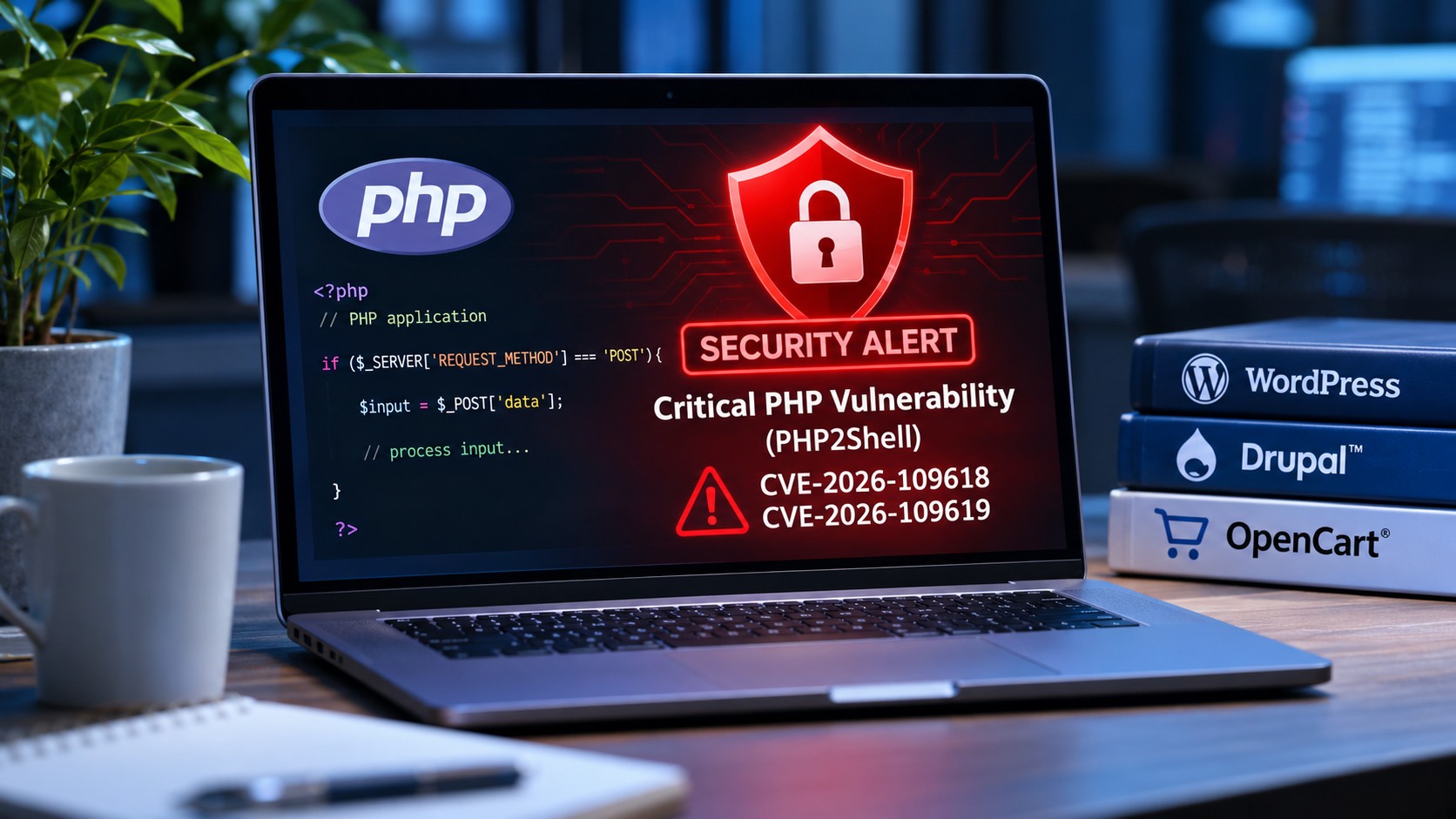
Also verify your PHP version. Newer WordPress versions, plugins, and themes may not work correctly on an outdated PHP release. On the other hand, switching to the newest PHP version without checking compatibility can break an old site. Test changes in a staging environment whenever possible.

#5 If Your Site is Compromised

If you see unfamiliar admin users, spam pages, hacked redirects, encrypted files, or security warnings in search results, treat the website as compromised. Changing one password is not enough.

A proper cleanup should include malware scanning and removal, investigation of infected files, removal of unauthorized users, password resets for WordPress, hosting, FTP, database, and email accounts, plus updates to WordPress core, themes, and plugins. Your site should also receive a security review to close the entry point that allowed the compromise.

Prevent the Next WordPress Outage

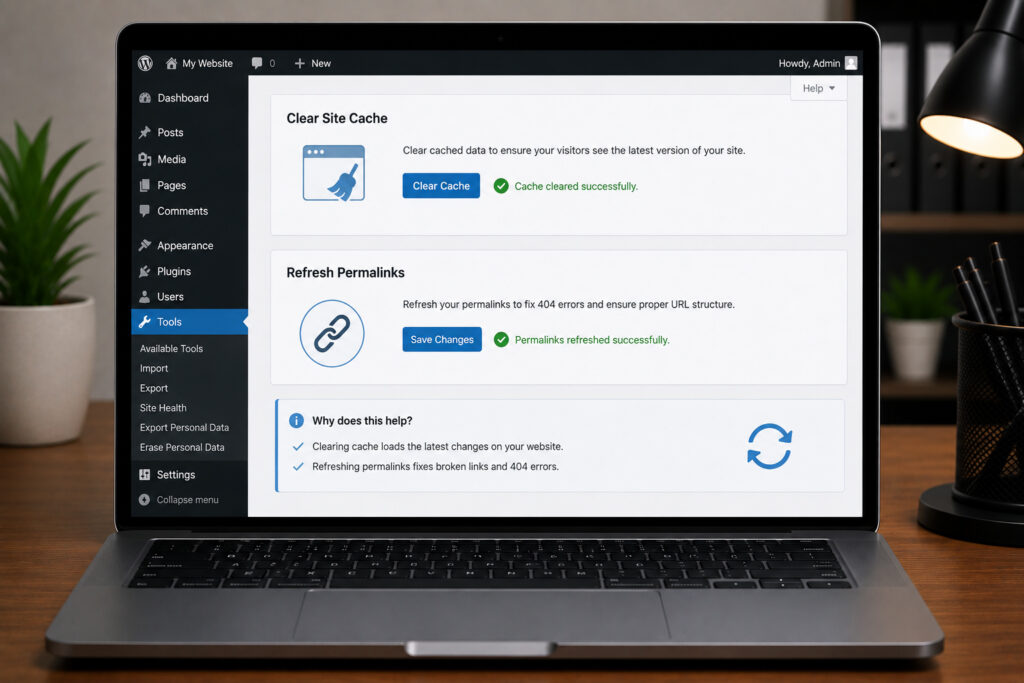
Reliable WordPress maintenance is less dramatic than emergency recovery, which is exactly the point. Schedule updates, back up files and databases automatically, monitor uptime, scan for malware, and review plugins regularly. Remove unused themes and plugins instead of leaving them as forgotten security risks.

Businesses with active campaigns, ecommerce revenue, or regular lead generation should also have a documented recovery plan: who has hosting access, where backups are stored, which pages must be tested first, and who can make urgent technical decisions.

Most Popular

Need Website Help?

Get an affordable quote for services like website maintenance, website repair, website upgrade, & website malware removal. 

On Key

Related Posts