Recover Your WordPress Website From Backup
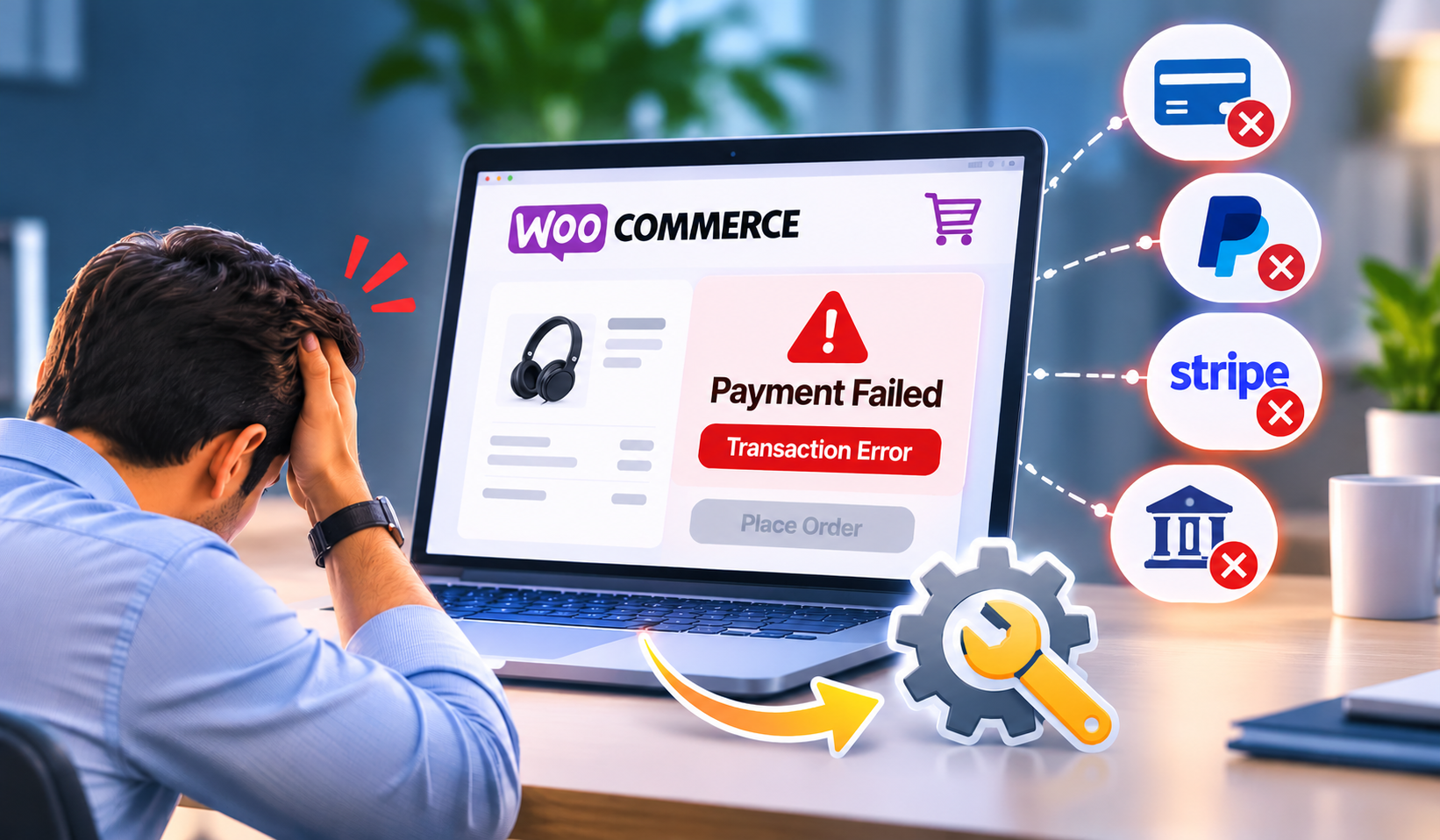
Has your homepage suddenly turned into a blank white screen? Are customers seeing an error message instead of your products, services, or contact form? That is not the kind of website redesign anyone asked for.
The good news is that you can often recover your WordPress website from backup without rebuilding the site from scratch. The bad news: restoring the wrong backup, database, or folder can replace working data with outdated information. A careful recovery process protects your website, leads, orders, and business reputation.
Before You Restore: Confirm What Went Wrong
A backup restore is a major action, not a first response to every website issue. If a single plugin update caused an error, restoring the entire site could erase recent form submissions, WooCommerce orders, blog posts, or customer accounts.
Start by identifying the scope of the problem. Ask these questions:
- Is the entire website offline, or is only one page affected?
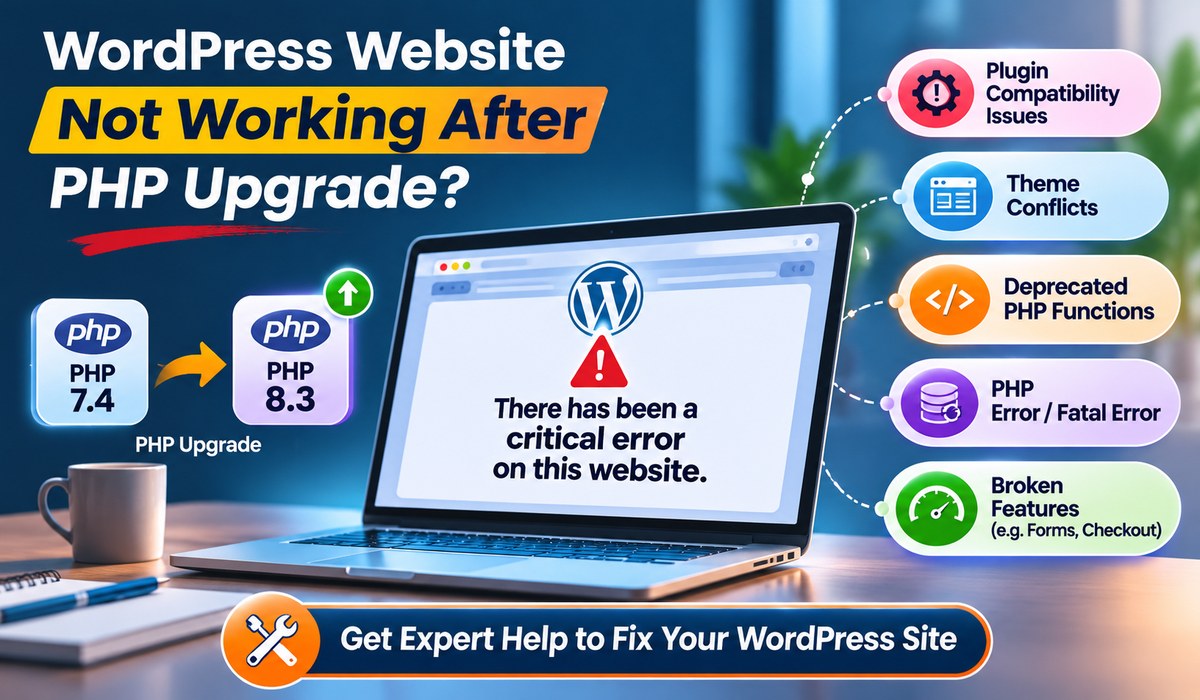
- Did the issue begin after a plugin, theme, WordPress core, or PHP update?
- Has the hosting provider sent an outage, malware, storage, or server-resource alert?
- Have new orders, leads, bookings, or content been added since the backup was created?
- Can you still access WordPress admin, your hosting control panel, FTP, or the backup service?
How to Recover Your WordPress Website From Backup
#1 Create a Fresh Snapshot First
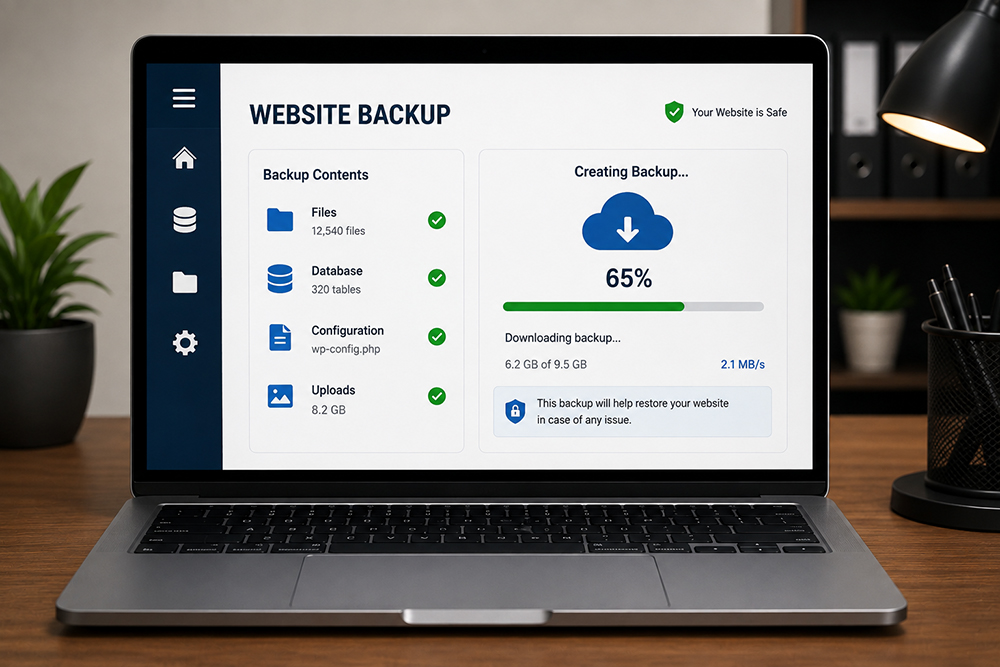
Even when the site is broken, create a current backup before changing anything. This may sound odd, but the latest copy can contain recent leads, order records, uploads, or configuration details missing from the older backup.
- Download a copy of the current database and website files if possible.
- Label it clearly with the date and time.
- Do not overwrite your existing backups.
#2 Put the Website in Maintenance Mode
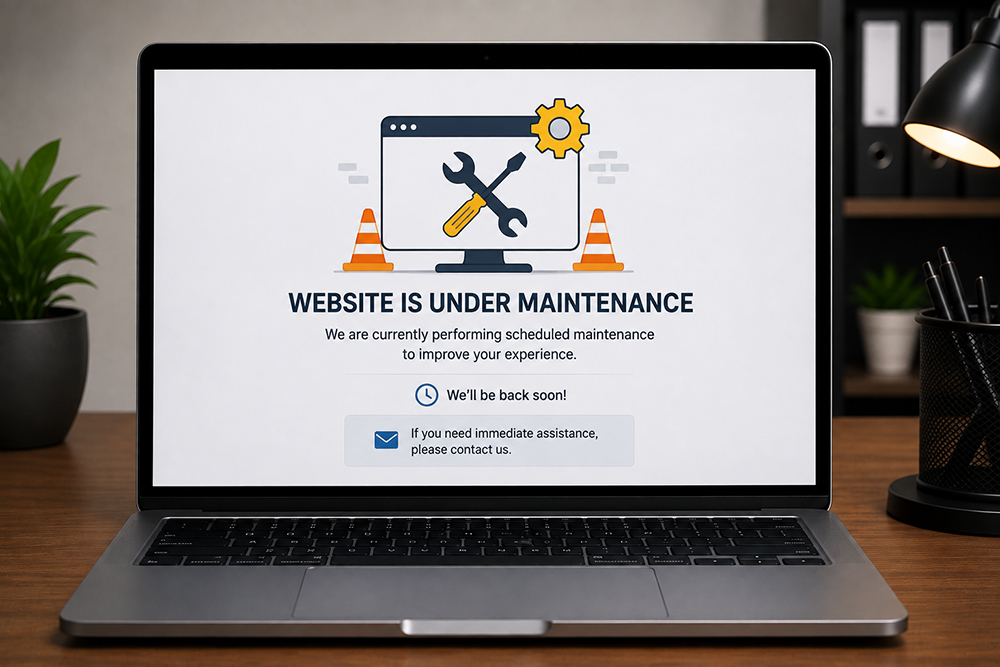
If the site is partially working, enable maintenance mode before restoring it. Visitors should see a short service message rather than broken pages, duplicate checkout sessions, or inconsistent content.
For eCommerce websites, pause promotional campaigns temporarily. Sending paid traffic to a damaged store wastes budget and can create a poor first impression for new customers.
#3 Restore Website Files
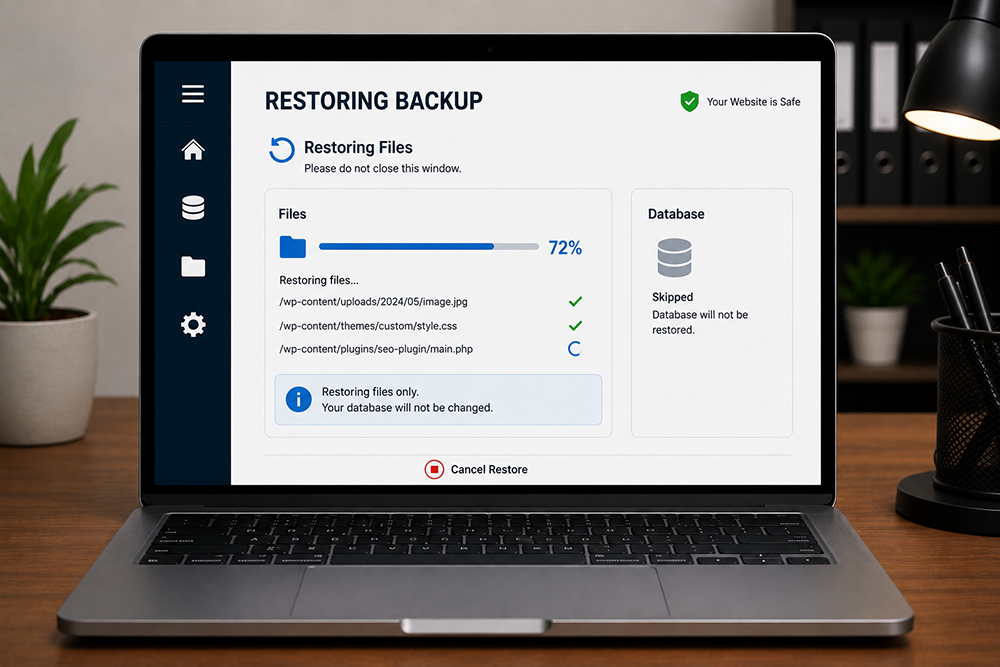
If your hosting control panel provides a restore feature, choose the correct backup date and restore the website files to the appropriate domain directory. Many WordPress installations use public_html, but your setup may use an add-on domain folder or a custom path.
When restoring manually through FTP or a file manager, upload the backup files carefully. The most important folders are usually:
wp-content/plugins
wp-content/themes
wp-content/uploads
WordPress root files, including wp-config.php
#4 Restore the WordPress Database
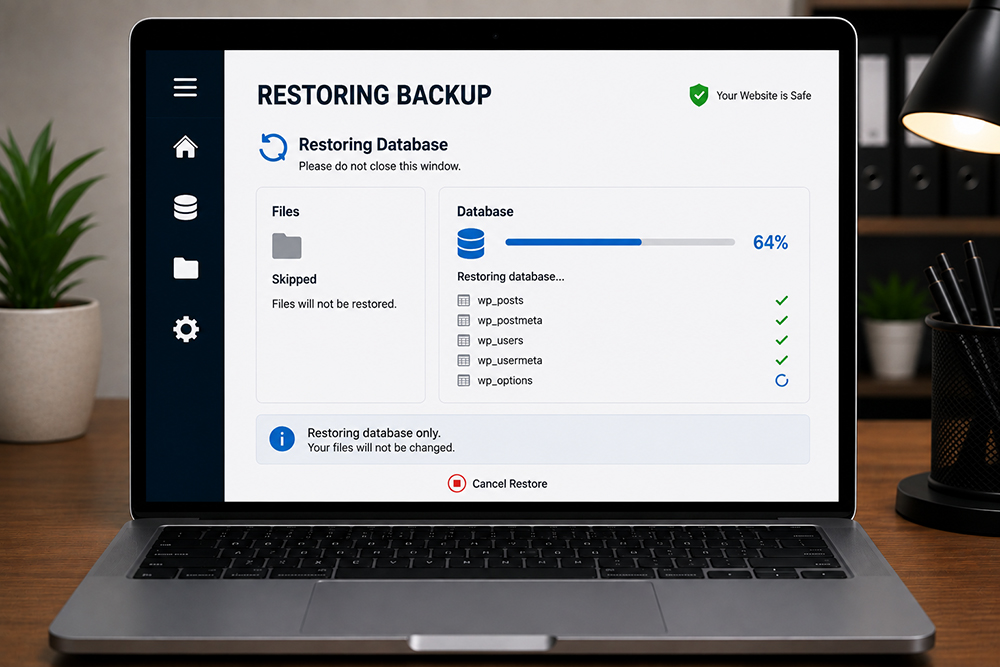
Next, restore the database backup through your host’s database tool, commonly phpMyAdmin, or through the backup provider’s restore dashboard.
Before importing the database, confirm the database name, username, password, and host listed in wp-config.php. These details must match the database you are restoring. Importing a backup into the wrong database can make a recoverable situation much messier.
If the backup creates a new database, update the credentials in wp-config.php only after verifying them. Then clear your website cache and test the site in a private browser window.
#5 Clear Caches and Refresh Permalinks
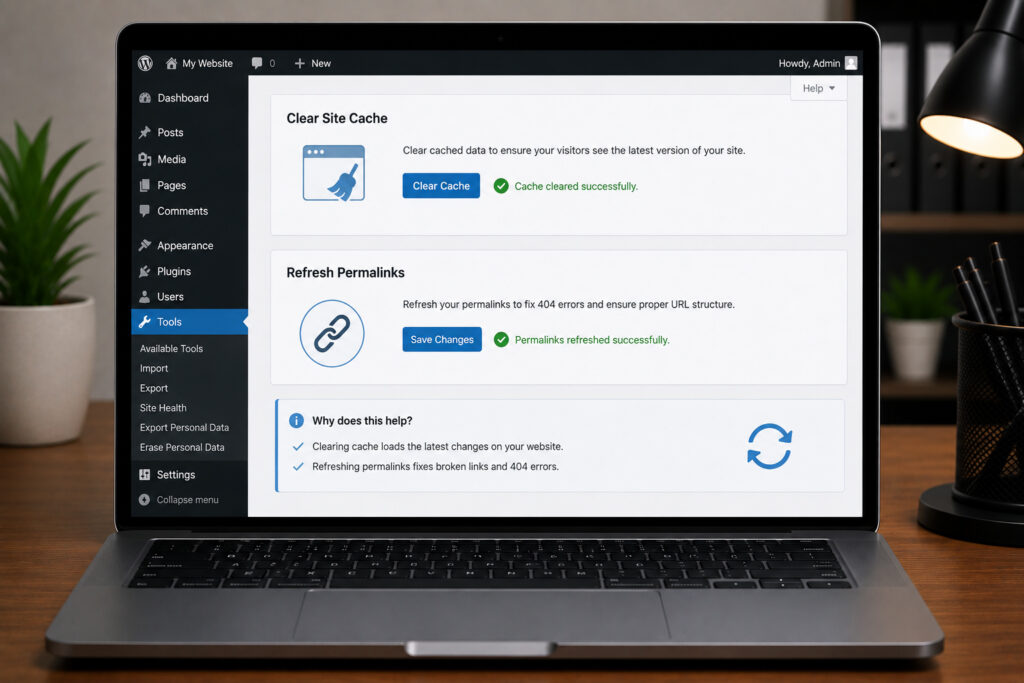
Cached pages can make it look as if the restoration failed when the restored site is actually working. Clear caches from your WordPress caching plugin, hosting account, content delivery network, and browser.
Once you can access WordPress admin, go to the Permalinks settings and save them again without making changes. This refreshes rewrite rules and often resolves broken internal pages or 404 errors after a restore.
When a Backup Restore Does Not Fix the Website
A backup is powerful, but it cannot solve every technical issue. Your website may still fail because of a server misconfiguration, expired SSL certificate, DNS problem, incompatible PHP version, corrupted database table, or malware that existed before the backup was made.
Malware is especially tricky. Restoring an infected backup can bring the same malicious code right back. In that case, the site needs a proper malware cleanup, security review, and file-level investigation before it returns to normal operation.
Get Professional Website Support
If your internal team is not comfortable handling database imports, malware scans, or hosting settings, professional WordPress support can reduce downtime and prevent costly mistakes. Innomedia helps businesses assess the issue, restore clean website versions, and put regular web maintenance measures in place.
A backup is not just an insurance file sitting quietly in a folder. It is your fastest route back to serving customers when a WordPress problem tries to turn a normal business day into a technical circus.