Fix a WordPress 500 Internal Server Error Fast
Is your website showing a blank white screen, an “Internal Server Error” message, or a page that looks like it called in sick without notice? Are customer inquiries, sales, and campaign clicks landing on an error page instead of your business? A WordPress 500 internal server error is frustrating, but it is usually fixable once you identify what changed and where the server is failing.
What Does a WordPress 500 Internal Server Error Mean?
A 500 error is a general server-side error. Your visitor’s browser successfully reached the web server, but the server could not complete the request needed to load your WordPress page.
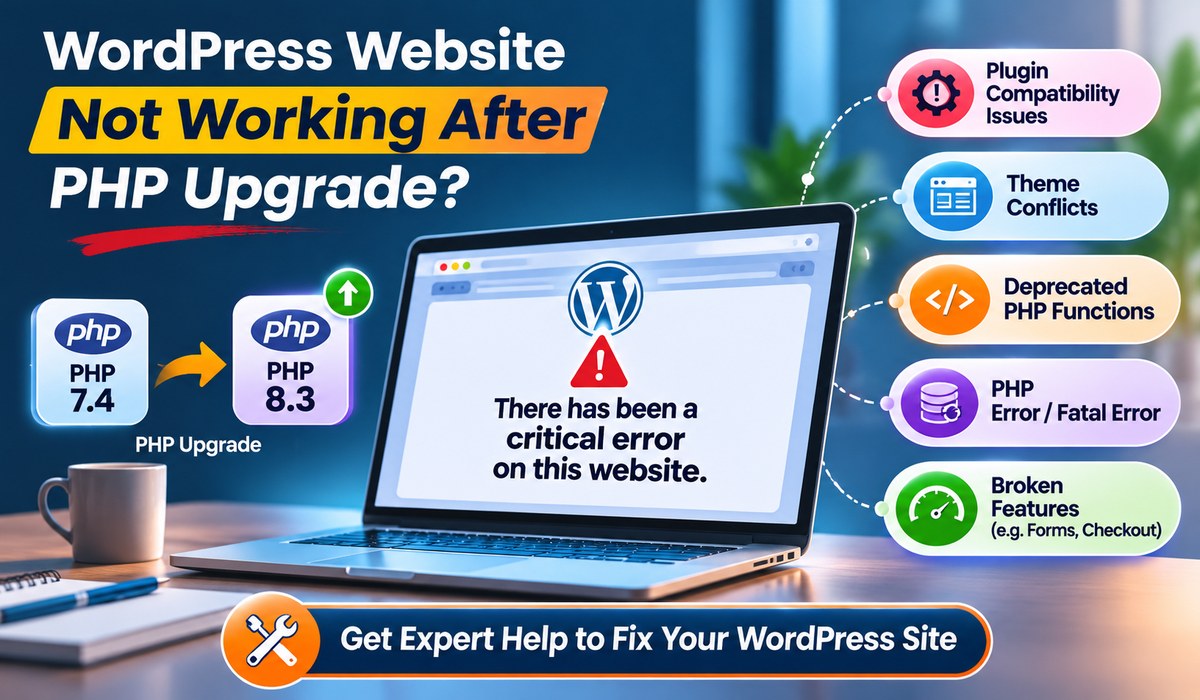
The message does not name the exact cause. That is why it can feel unhelpful. The issue could be a plugin conflict, broken code, an incompatible PHP version, incorrect file permissions, a damaged .htaccess file, low server resources, or malware.
A useful clue is timing. Ask what happened immediately before the error appeared:
- Was WordPress, a theme, or a plugin updated?
- Did your hosting provider change the PHP version or move the account?
- Did someone edit theme files, functions, redirects, or server settings?
- Did the website recently receive a spike in traffic from ads, email, or social media?
- Has the site shown signs of malware, spam redirects, or unfamiliar administrator accounts?
How To Fix WordPress 500 Internal Server Error
#1 Check the WordPress Error Logs
Your error logs are often the fastest route to the real cause. Access them through your hosting control panel, server dashboard, or WordPress debug settings. Look for entries recorded at the same time the 500 error began.
Common log messages may point to a specific plugin file, a missing function, exhausted memory, an unsupported PHP feature, or permission errors. A line that names a plugin or theme is especially valuable because it narrows the investigation immediately.
#2 Disable Plugins to Find a Conflict
Plugin conflicts are one of the most frequent reasons for a WordPress internal server error. Security plugins, cache tools, page builders, backup tools, payment extensions, and older plugins can conflict after an update.
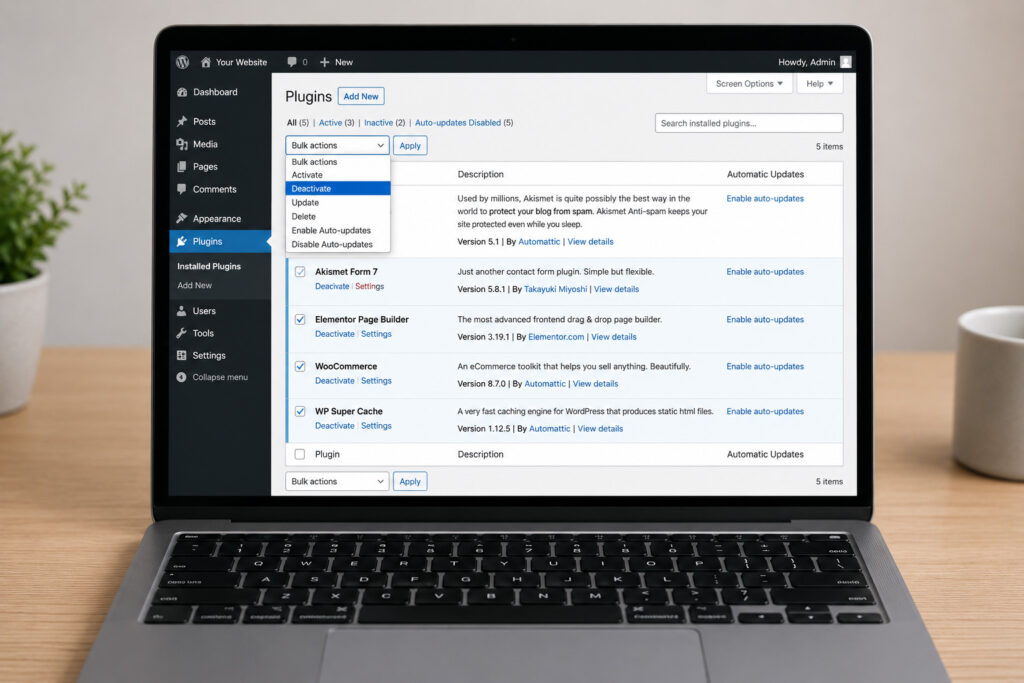
If you can access the WordPress dashboard, deactivate all plugins and test the site. If the site works, reactivate plugins one by one until the error returns. The last plugin activated is the likely problem.
If you cannot access the dashboard, use your hosting file manager or FTP client. Rename the plugins folder inside wp-content to something like plugins-disabled. This temporarily disables all plugins. Once the website loads, rename the folder back and test individual plugin folders as needed.
#3 Test the Active Theme
A damaged or outdated theme can also cause a 500 error, especially after a WordPress or PHP update. Custom code in functions.php, theme templates, or a child theme may rely on functions that no longer work.
Switch temporarily to a default WordPress theme, such as a current Twenty Twenty theme. If the error disappears, investigate the original theme, its child theme, and any customizations added by a developer.
For businesses using a custom-built design, do not overwrite the theme blindly. Download a backup first.
#4 Reset the .htaccess File
The .htaccess file controls certain server rules, including WordPress permalinks and redirects. A corrupted rule can trigger a server error.
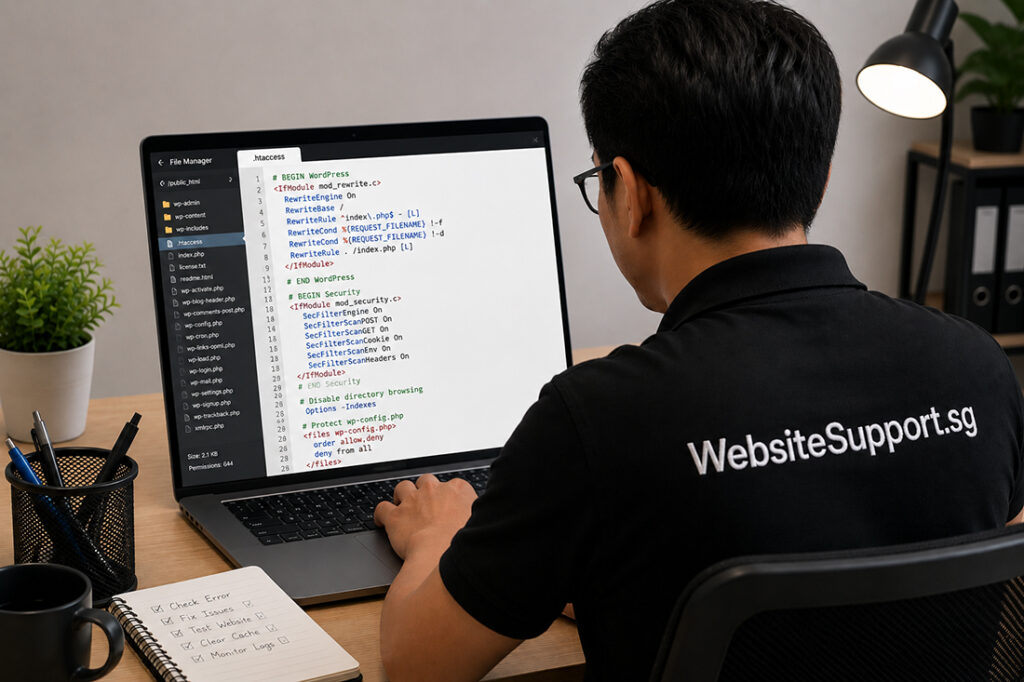
Using the file manager or FTP, rename .htaccess to .htaccess-old, then test the website. If the site loads, log into WordPress, go to Settings, then Permalinks, and save the settings to generate a fresh file.
Be careful if your website uses custom redirects, security rules, caching rules, or special server configurations. Compare the old file with the newly generated version before deleting anything permanently.
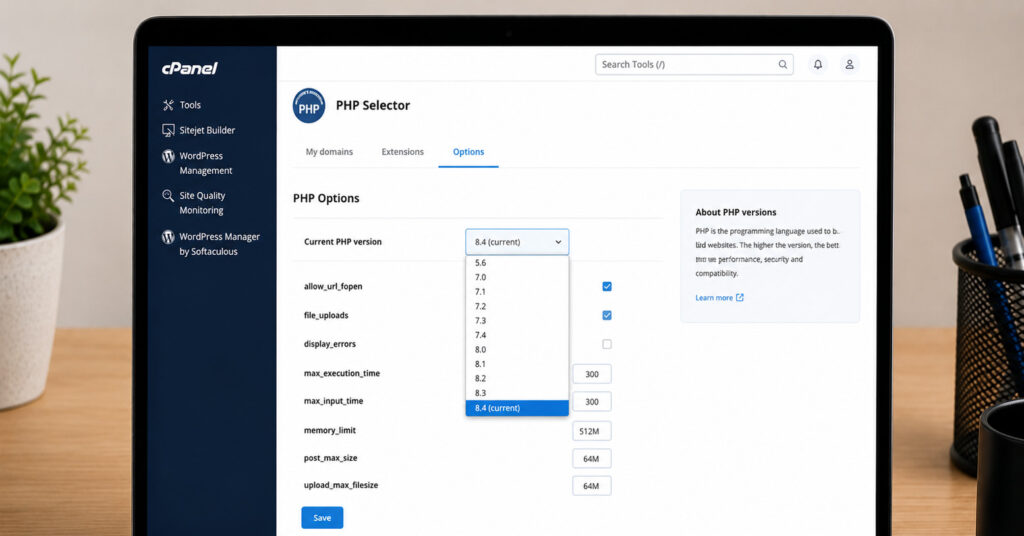
#5 Review PHP Version and Memory Limits
WordPress, themes, and plugins need a compatible PHP version. An old PHP version may no longer support updated plugins. A very new version can also create issues when a site relies on outdated code.
Check your hosting dashboard for the active PHP version. Then verify that WordPress, your theme, and critical plugins support it. PHP 8.1 or 8.2 is commonly appropriate for modern WordPress installations, but compatibility should be confirmed before changing a live site.
Memory exhaustion is another common trigger. Error logs may show messages such as “Allowed memory size exhausted.”
Increasing memory can help, but it is not always the final answer. If a plugin is consuming unusual resources, more memory may only postpone the next outage. Identify the underlying process as well.
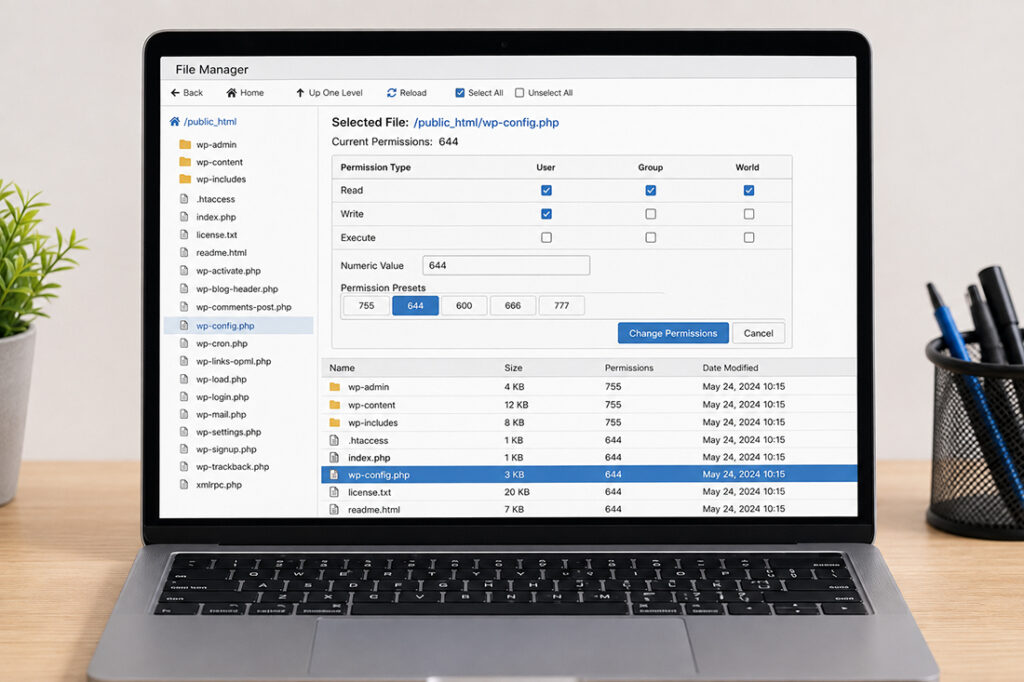
#6 Check File and Folder Permissions
Incorrect permissions can prevent WordPress from reading files or writing to required folders. On many hosting environments, folders should use 755 permissions and files should use 644. However, server setups vary, so follow your host’s recommended settings where they differ.
Never set folders or files to 777 as a quick fix. It may create a security risk and is rarely necessary on properly configured hosting.
Focus on key areas such as the WordPress root directory, wp-content, uploads, cache folders, and recently modified files. Permission problems often appear after a site migration, manual upload, backup restoration, or hosting move.
#7 Scan for Malware and Unauthorized Changes
A 500 error can be a symptom of malicious code, especially if the site was slow, redirecting visitors, sending spam, or showing unfamiliar content before it failed. Malware can alter core files, inject code into themes, create rogue administrator accounts, and overload server resources.
Check recently modified files, review administrator users, and compare WordPress core files against a clean version. A proper malware cleanup should remove the infection, close the entry point, update vulnerable software, and strengthen ongoing monitoring. Removing one suspicious file without fixing the vulnerability often leads to reinfection.
Prevent the Error From Returning
The best fix is one you do not need next month. Keep WordPress core, plugins, and themes updated on a planned schedule, not randomly during peak business hours. Test significant updates on a staging site when possible, particularly for WooCommerce, custom themes, payment gateways, and lead-generation forms.
A practical maintenance plan should include:
- Automated daily backups stored separately from the live server
- Uptime monitoring that alerts you before customers report a problem
- Security scanning and malware prevention
- Regular plugin, theme, PHP, and WordPress compatibility checks
- Performance reviews for slow pages, database bloat, and resource-heavy plugins
- A documented recovery process for website, form, and eCommerce issues
- Small businesses do not need enterprise complexity. They do need a reliable process, a current backup, and a technical team that can respond before a brief error becomes a week-long disruption.
If your WordPress site keeps returning 500 errors, do not keep applying temporary patches while leads disappear. A focused website audit can identify the faulty code, hosting constraint, security issue, or maintenance gap – and help your website get back to doing its actual job: supporting growth.