Fixing “WordPress Admin Login Not Working” Issue
Locked out of your own website? Does the WordPress login page keep rejecting a password you know is correct? Few things ruin a productive morning faster than a website acting like it has hired its own security guard.
When a wordpress admin login not working issue appears, it can stop content updates, product changes, campaign launches, and customer support tasks. For a business website, the priority is not simply getting back into the dashboard. It is restoring access safely without creating a larger technical or security problem.
Preliminary Checks
Before changing files or contacting your hosting provider, rule out the simple causes. These checks solve a surprising number of WordPress login problems in minutes.
Check the login address and browser session
Use the correct login URL: yourdomain.com/wp-admin or yourdomain.com/wp-login.php. If your site uses a security plugin, the standard login address may have been changed.
Then try the following:
- Open the login page in an incognito or private browser window.
- Clear browser cookies and cache for the website.
- Try another browser or device.
- Turn off a VPN temporarily if one is active.
- Confirm that your device date and time are correct.
WordPress uses cookies to maintain a logged-in session. A corrupted or blocked cookie can cause login loops, redirect users back to the login screen, or display a blank page after entering credentials.
Reset the password properly
Click “Lost your password?” on the WordPress login screen and request a reset link. Check spam, junk, and quarantine folders if the email does not arrive quickly.
If the reset email never arrives, the website may have an email delivery issue rather than a login issue. Poorly configured WordPress mail settings, hosting mail restrictions, or an outdated administrator email address can all block the reset process.
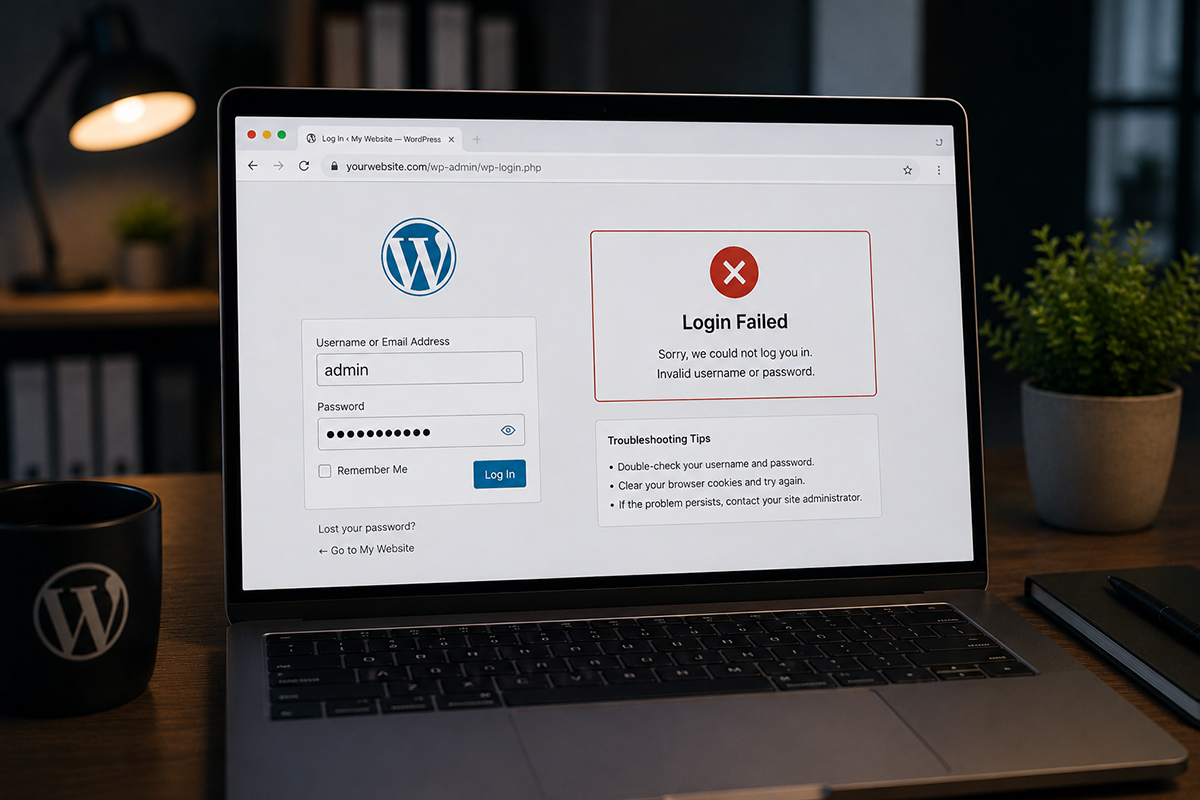
Avoid repeated password guesses. Multiple failed attempts may trigger a security plugin or host firewall, leaving you temporarily blocked even after you remember the right password.
Possible Causes & Ways to Fix
#1 Redirect Loop
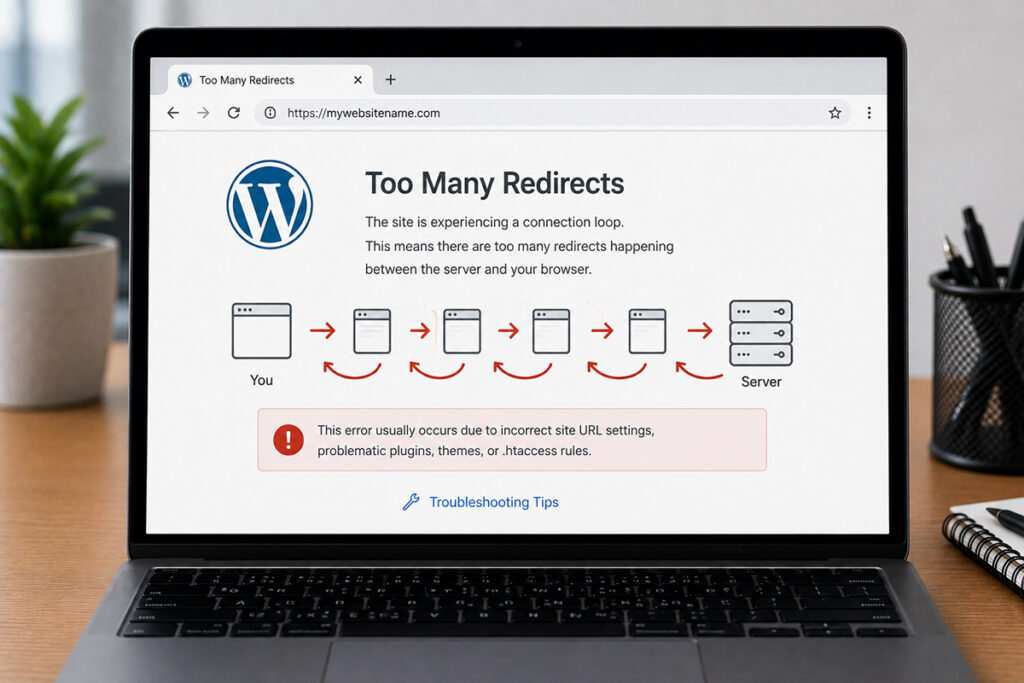
This is commonly called a WordPress login redirect loop. You enter your credentials, WordPress appears to process them, then sends you straight back to the same screen.
Typical causes include:
- Browser cookies or caching conflicts
- Mismatched WordPress Address and Site Address settings
- HTTP and HTTPS conflicts
- A cache, security, or redirect plugin issue
- Incorrect file permissions or damaged core files
If your website recently moved to HTTPS, changed domains, switched hosting, or had a redesign, check the site URLs first. WordPress must use the same preferred version of the domain everywhere. For example, mixing www and non-www URLs can disrupt login cookies and redirects.
#2 Incorrect Password
First, verify that you are using the correct username or email. Many site owners manage more than one website and accidentally use credentials from another installation.
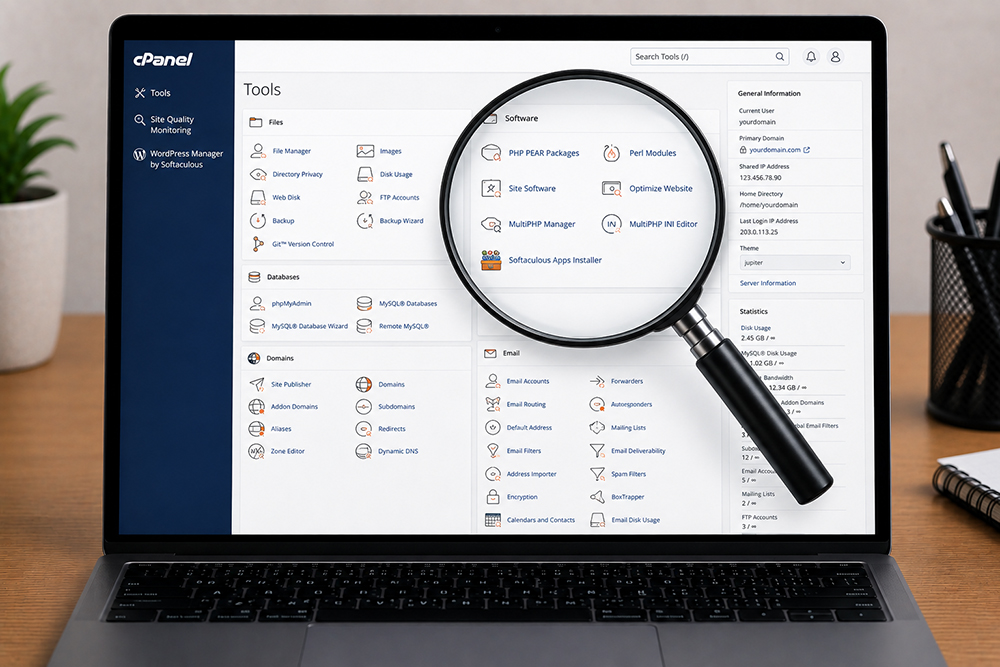
If the password reset process does not work, a WordPress administrator can reset your password through the hosting database tool. This is effective, but it must be done carefully. Editing the wrong database record can affect another website, especially on shared hosting plans.
For business websites, use a password manager and give each administrator a separate user account. Shared logins make it harder to identify access issues and raise unnecessary security risks.
#3 You see “Error establishing a database connection”
This message is not a normal password problem. WordPress cannot connect to its database, so it cannot validate users or load the dashboard.
The cause may be incorrect database credentials in the wp-config.php file, a database server outage, corrupted tables, or a hosting resource limit. Contact your host if the database service may be down. If the problem followed a migration or server change, have the database name, username, password, and host settings reviewed.
#4 Blocked by a security message
Messages such as “Too many failed login attempts,” “Access denied,” or a 403 error often indicate a security rule is doing its job a little too enthusiastically.
A firewall plugin, host-level security system, content delivery network, or IP restriction may have blocked your device. If you have access to hosting controls, review blocked IP addresses and security logs. Do not disable every protection permanently just to regain entry. Remove the specific block, reset the relevant setting, and keep a record of what caused it.
#5 Plugin/Theme Conflicts
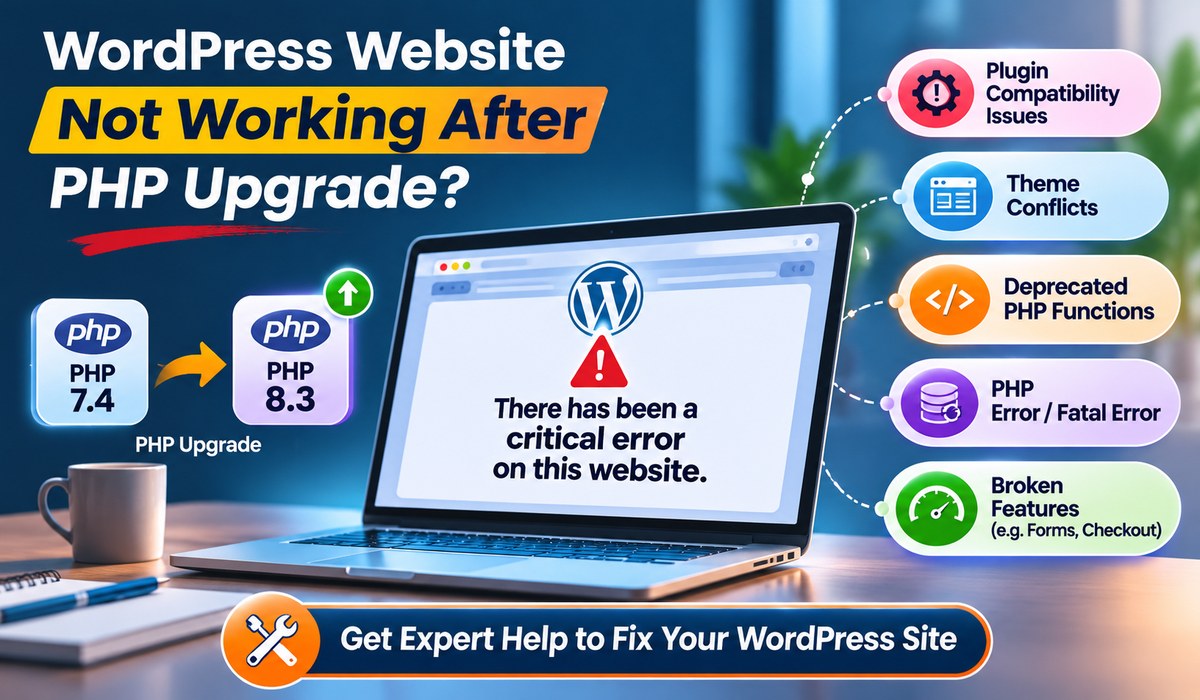
A faulty plugin is one of the most common reasons the WordPress dashboard will not load. This often happens after an automatic update, a PHP version change, or a new plugin installation.
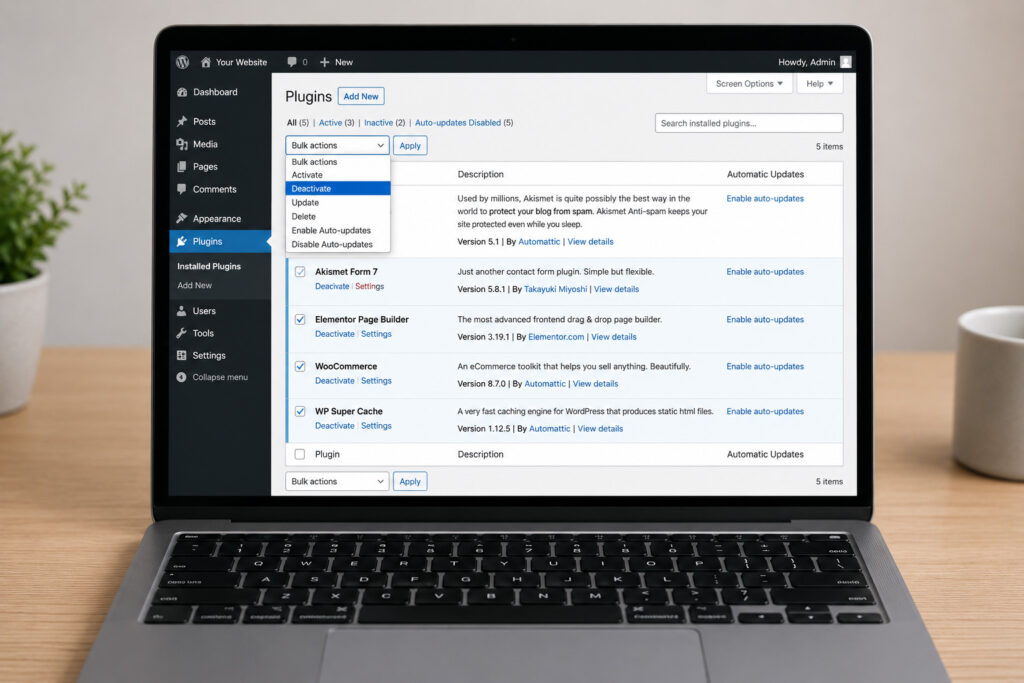
If you can access your website files through hosting file manager or SFTP, rename the plugins folder inside wp-content. For example, change “plugins” to “plugins-disabled.” This deactivates all plugins without deleting them.
Try logging in again. If access returns, rename the folder back to “plugins,” then deactivate and reactivate plugins one at a time from the dashboard. The plugin that breaks the login when reactivated is the likely source of the problem.
The same approach can identify a theme conflict. Temporarily switch to a default WordPress theme if possible. If the login page or dashboard returns, your active theme or its custom code needs attention.
#6 Incorrect URL settings
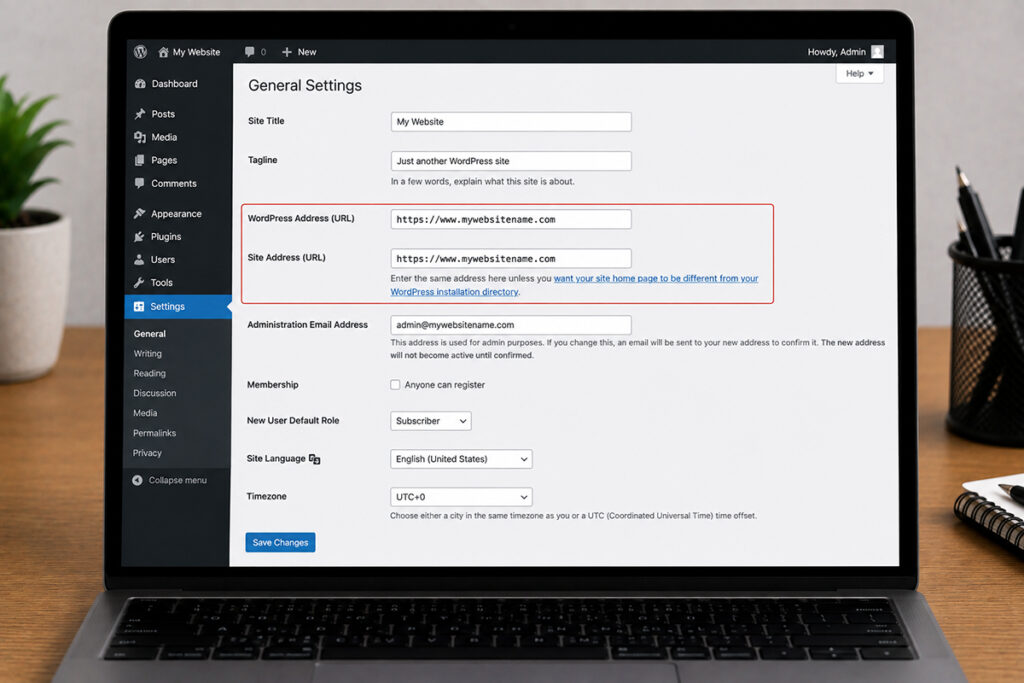
In WordPress, the WordPress Address and Site Address should match the live version of your domain. If you cannot access the dashboard, these values can be reviewed in the database or temporarily defined in wp-config.php by a qualified developer.
Be particularly careful after a domain migration, staging-site launch, or website redesign. A staging URL left in the database can redirect administrators away from the live login page.
#7 Verify PHP and server resources
Older plugins may fail after a host upgrades PHP. On the other hand, running an outdated PHP version creates security and compatibility concerns. Review error logs for memory exhaustion, fatal PHP errors, or missing extensions.
A white screen, critical error message, or 500 server error during login often requires log review rather than guesswork. Turn on WordPress debugging only in a controlled way, and never leave visible error output enabled on a public business site.
#8 Security issues
If administrators cannot log in after unfamiliar user accounts appear, files change unexpectedly, search rankings drop, or visitors see suspicious redirects, assume malware may be involved.
Malware can alter login behavior, create hidden administrator accounts, inject spam pages, or redirect traffic to harmful sites. Simply resetting the password may not remove the underlying infection.
A proper cleanup should include:
- Scanning WordPress core files, plugins, themes, and the database
- Removing malicious code and unauthorized admin users
- Updating WordPress, plugins, themes, and PHP where appropriate
- Resetting all administrator passwords and security keys
- Reviewing file permissions, backups, and server logs
When to Get Professional WordPress Support
A redirect loop is straightforward when there is one obvious setting. It becomes more complex when the issue involves DNS, server rules, a CDN, malware, a migration, or an eCommerce checkout flow.
Professional WordPress support is a sensible option when the site is generating leads or sales and downtime is already affecting revenue. A proper technical check should review the URL structure, SSL certificate, plugins, hosting configuration, caching layers, and redirect history before making changes.