Fix “There Has Been a Critical Error On This Website” Error
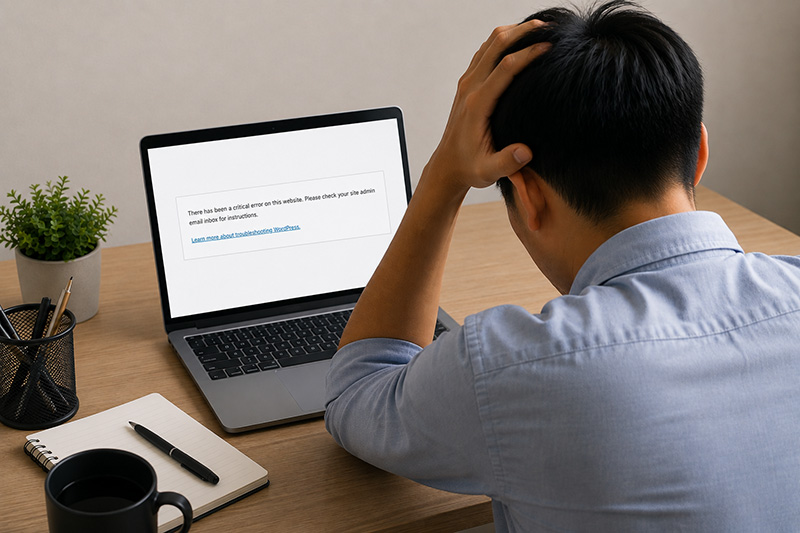
Is your WordPress site showing “There has been a critical error on this website”? Did a routine plugin update suddenly turn your homepage into a digital “Closed for Maintenance” sign? Frustrating, yes. The good news is that this error is usually fixable without rebuilding your website from scratch.
A WordPress critical error means the website encountered a fatal PHP error and could not complete a request. Instead of loading the page normally, WordPress stops to prevent further damage.
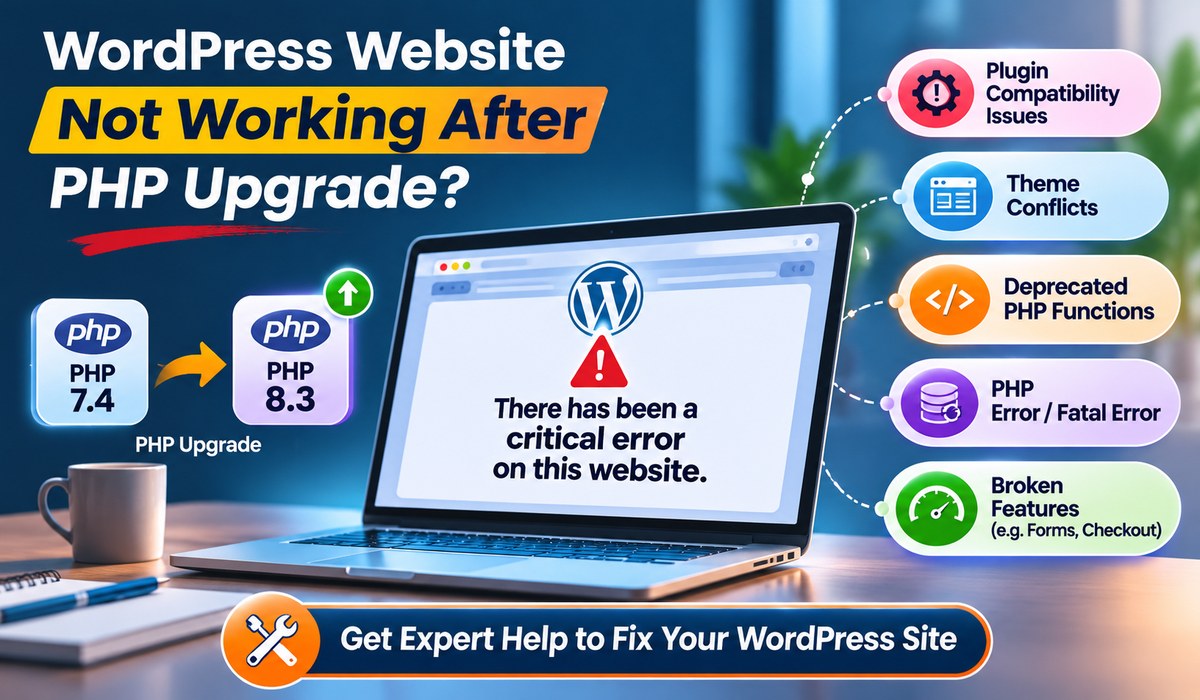
The message itself is broad. The actual cause may be a plugin conflict, incompatible theme, PHP version issue, exhausted server memory, corrupted WordPress files, or malware. A recent change is often the biggest clue. If the site failed immediately after an update, new plugin installation, code edit, or hosting migration, begin there.
Before making changes, take a backup of your files and database if your hosting control panel still gives you access. A backup creates a safe rollback point if a troubleshooting step makes matters worse.
How To Fix WordPress Critical Error
Step 1: Check Your WordPress Recovery Email
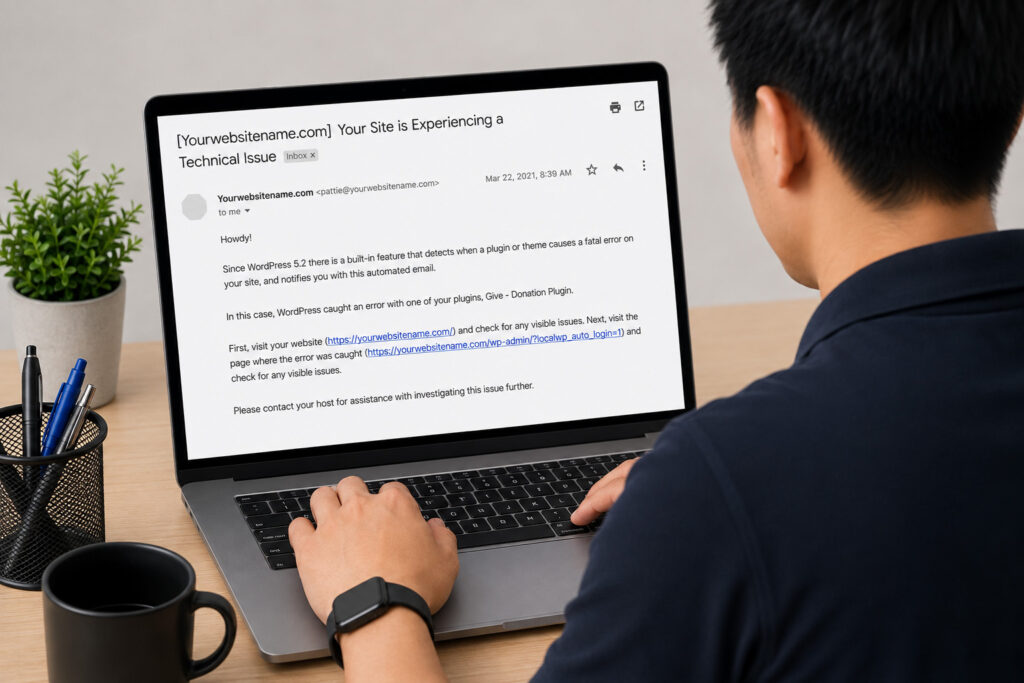
WordPress often sends an email to the site administrator when it detects a fatal error. Look in the inbox and spam folder for a message with a subject similar to “Your Site is Experiencing a Technical Issue.”
This email may identify the plugin or theme causing the crash and provide a recovery mode link. Recovery mode lets you log in with affected plugins paused, which is much safer than guessing.
Step 2: Enable WordPress Debug Mode
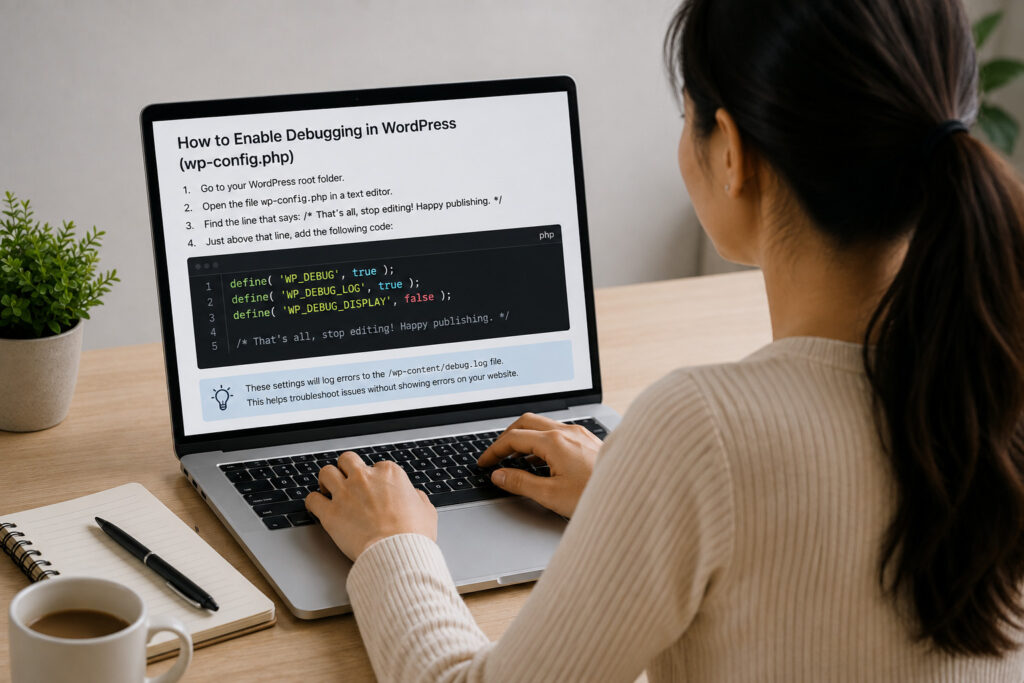
If no recovery email arrives, debugging can reveal the underlying error. Open the wp-config.php file in your website’s file manager or through SFTP. Find the line that says WP_DEBUG and use these settings:
define( ‘WP_DEBUG’, true );
define( ‘WP_DEBUG_LOG’, true );
define( ‘WP_DEBUG_DISPLAY’, false );
Reload the page that produced the error.
Then check the debug.log file inside the wp-content folder. Look for references to a particular plugin folder, theme folder, PHP file, or memory limit.
Step 3: Disable Plugins to Find a Conflict
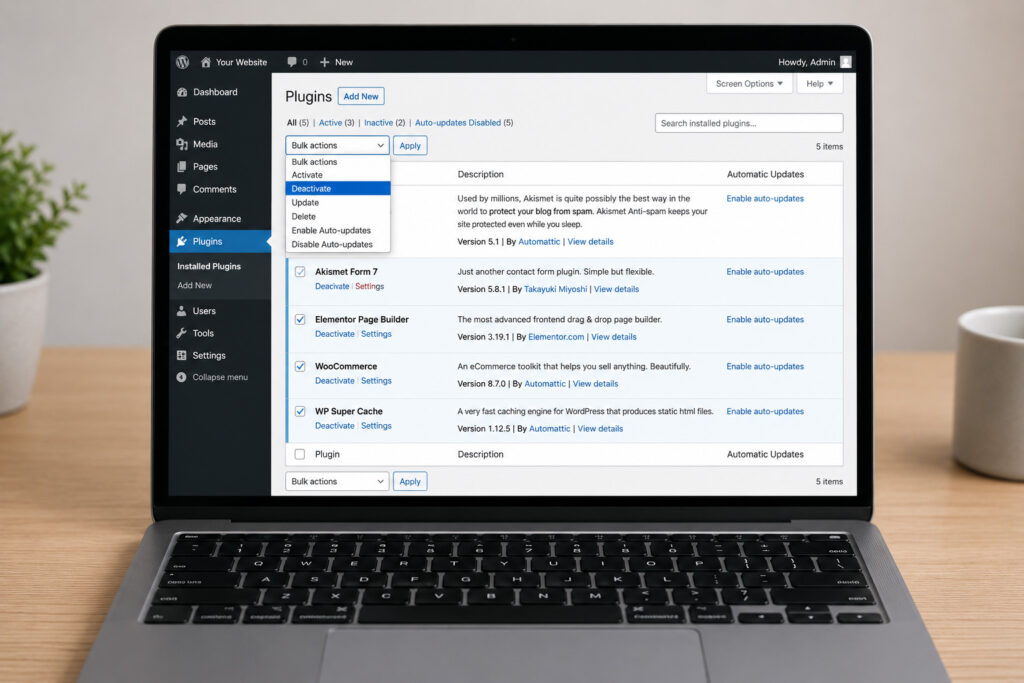
If you can access the WordPress admin area, deactivate all plugins. Test the site, then reactivate them one at a time until the error returns. The last plugin activated is likely the problem.
If the dashboard is unavailable, use your hosting file manager or SFTP:
- Open the wp-content directory.
- Rename the plugins folder to something like plugins-disabled.
- Refresh your website.
- If the site loads, rename the folder back to plugins.
- Rename individual plugin folders one by one to isolate the faulty extension.
When you identify the plugin, check whether an update is available. If it is no longer maintained or conflicts with your setup, replace it with a supported alternative.
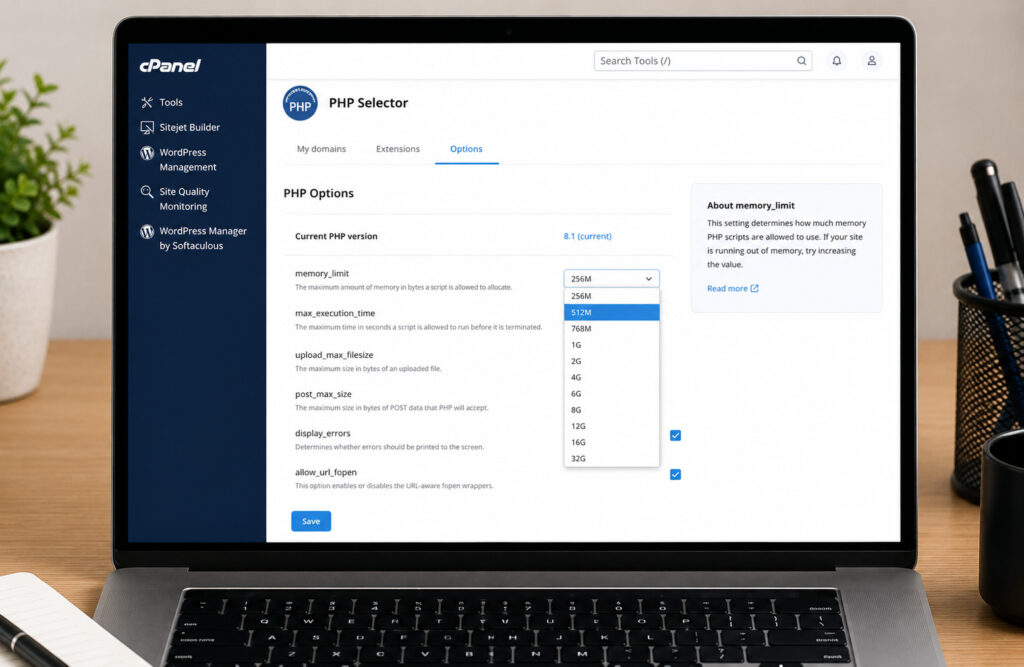
Step 4: Increase the PHP Memory Limit
When the PHP memory limit is too low, the site can fail with a critical error, particularly during backups, imports, updates, or high-traffic periods.
You may see an error in the debug log that says “Allowed memory size exhausted.” In that case, add this line to wp-config.php before the line that says “That’s all, stop editing”:
define( ‘WP_MEMORY_LIMIT’, ‘256M’ );
Some hosting providers control memory limits at the server level, so this change may not be enough. Check your hosting panel’s PHP settings or ask the host to increase the limit.
Step 5: Check PHP Version Compatibility
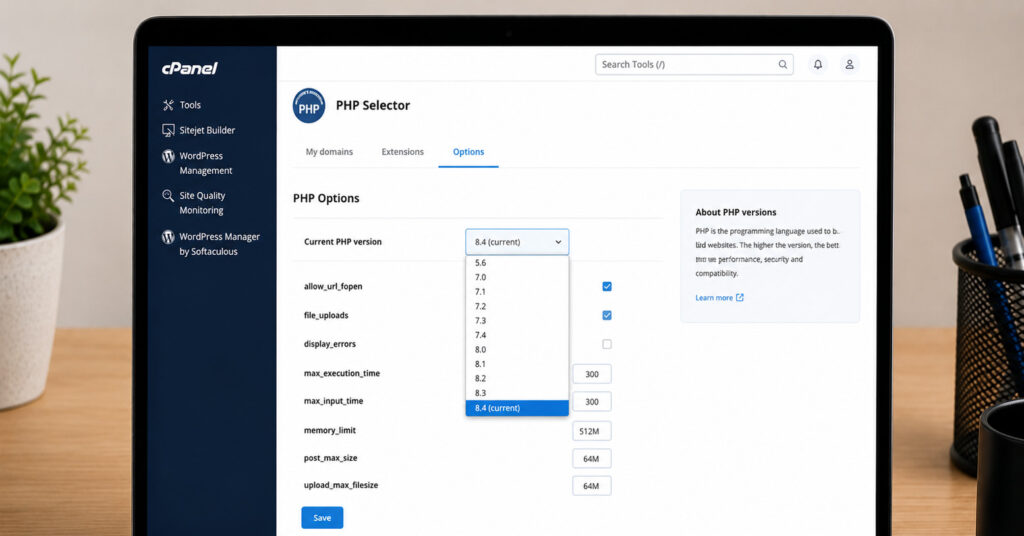
WordPress, themes, and plugins must work with the PHP version running on your hosting account. An old PHP version creates security and performance problems. A very new PHP version can also break abandoned themes or plugins that have not been updated.
Check your active PHP version in the hosting control panel. Then compare it with the requirements listed by WordPress, your theme, and key plugins. Update PHP only after taking a full backup and checking compatibility.
Step 6: Restore or Replace Corrupted WordPress Core Files
If plugins and themes are not the cause, WordPress core files may be damaged after a failed update, incorrect file permissions, or malware infection. You can replace core files without deleting your content.
Download a clean copy of the same WordPress version, then replace the wp-admin and wp-includes folders on the server. Do not overwrite wp-content or your wp-config.php file, as those hold your themes, plugins, uploads, and website settings.
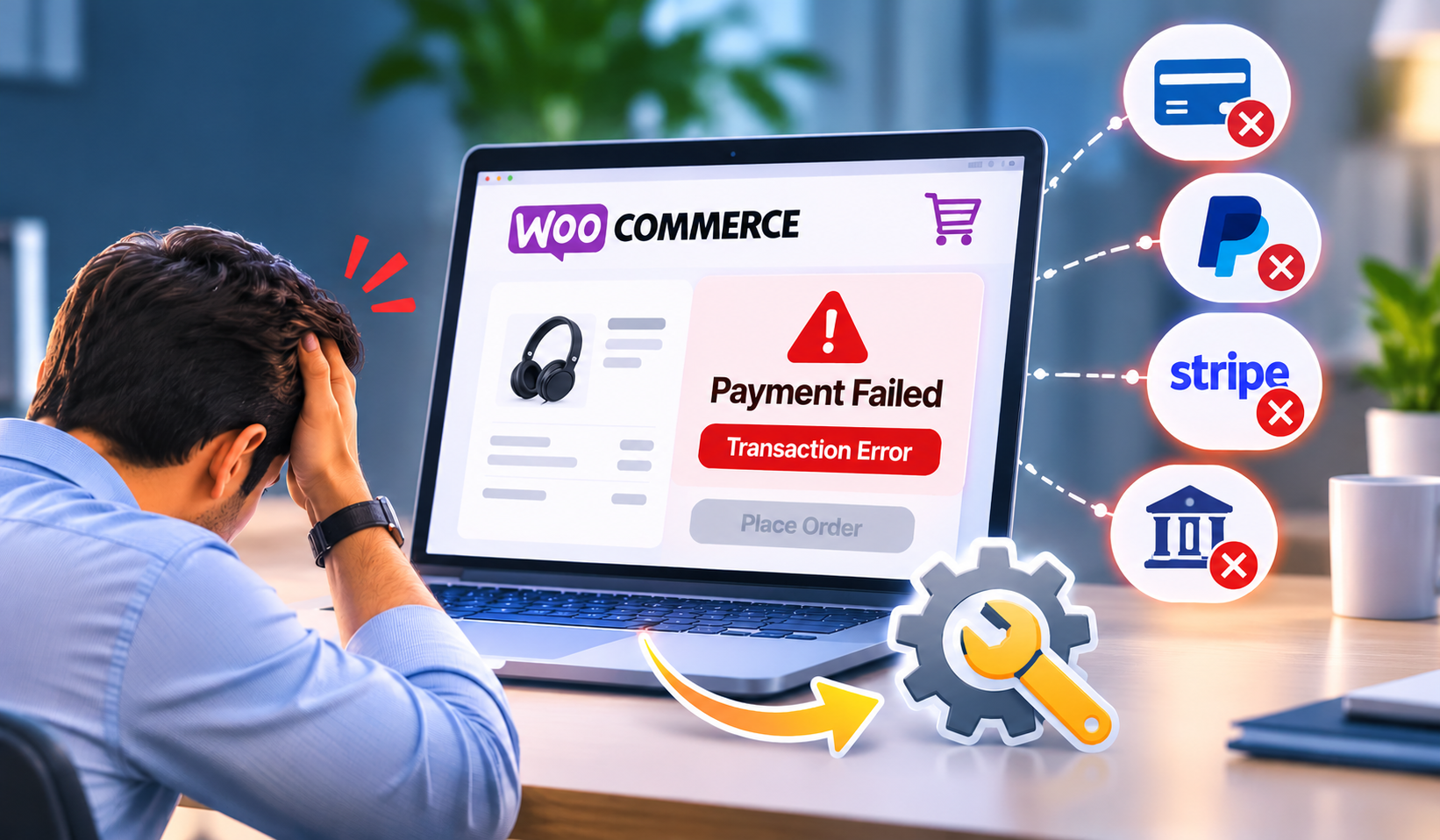
Call for technical help when the error follows a hack, a failed migration, a database issue, repeated crashes, or a custom development change. The same applies if your site handles online payments, customer data, or active advertising campaigns. Trial-and-error troubleshooting on a revenue-generating website can become expensive quickly.
A critical error is a warning sign, not necessarily a catastrophe. Fix the immediate issue carefully, record what caused it, and set a routine for updates, backups, security scans, and plugin reviews. That small amount of ongoing maintenance is far cheaper than discovering your website has chosen its busiest sales day to take an unscheduled nap.