WordPress Contact Form Not Sending Email? Fix It
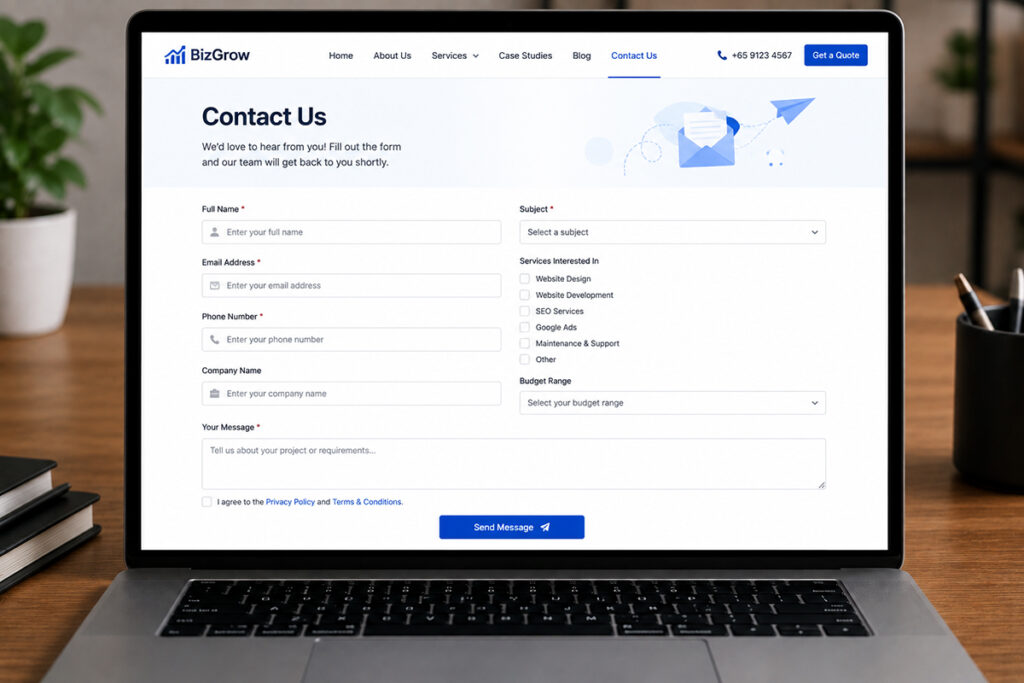
A WordPress contact form that’s not sending email can cost a business genuine inquiries, quote requests, and support opportunities. The frustrating part is that the form may look perfectly normal to visitors. They enter their details, click Submit, see a confirmation message, and assume you have received everything. Meanwhile, nothing reaches your inbox.
The good news: this issue is usually fixable without rebuilding your website. The key is to identify whether the failure sits with the form, WordPress, your web host, email authentication, or your mail inbox.
Why WordPress Contact Forms Stop Sending Emails
Most WordPress form plugins rely on the standard WordPress email function, commonly known as wp_mail(). This function asks your server to send the notification email. On many hosting environments, that request is not authenticated correctly, is restricted for security reasons, or is treated as suspicious by receiving mail providers.
That means the form itself may be working. The email delivery is what fails.
Common causes include:
- Your web host does not reliably support PHP mail sending.
- The form notification is configured with the wrong recipient address.
- The “From” email address does not match your website domain.
- SPF, DKIM, or DMARC email records are missing or incorrectly configured.
- Your message lands in spam, junk, quarantine, or an overlooked shared inbox.
- A security, caching, or SMTP plugin conflicts with the form.
- Your website has been hacked, is sending spam, or has a damaged WordPress configuration.
How To Fix Contact Form Email Delivery Issue
#1 Check the form submission record
Some plugins store entries inside WordPress even when the notification email fails. Look in your form plugin’s submissions or entries area. Contact Form 7 may need an additional database plugin to save entries, while tools such as WPForms, Gravity Forms, and Fluent Forms often include entry management depending on the plan and setup.
If the entry appears in WordPress, your form is collecting the lead. The issue is email delivery.
If no entry appears and the form shows an error, investigate the form configuration, spam protection, JavaScript errors, or a plugin conflict first.
#2 Test every important form
Do not stop at the main contact page. Businesses often have several lead paths, including request-a-quote forms, service inquiry forms, booking forms, product inquiry forms, pop-ups, and landing page forms. Each can have separate notification settings.
Test them on desktop and mobile. A form that works on one page but fails on an advertising landing page is still a lost-lead problem.
#3 Check Your WordPress Form Email Settings
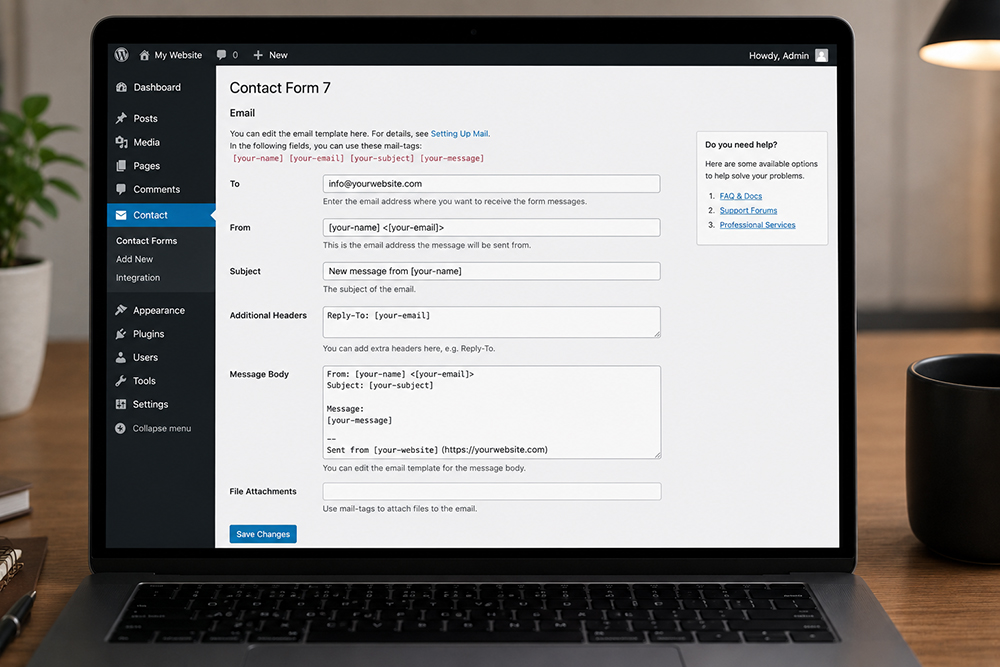
Open the notification settings in your form plugin and review the recipient, sender, reply-to address, and subject line.
The recipient should be an active business email address that someone monitors. Avoid sending high-value inquiries only to a personal employee inbox, especially if that person is on leave or leaves the company.
The sender address deserves extra attention. If your website domain is yourcompany.com, the From address should normally use that same domain, such as website@yourcompany.com or noreply@yourcompany.com.
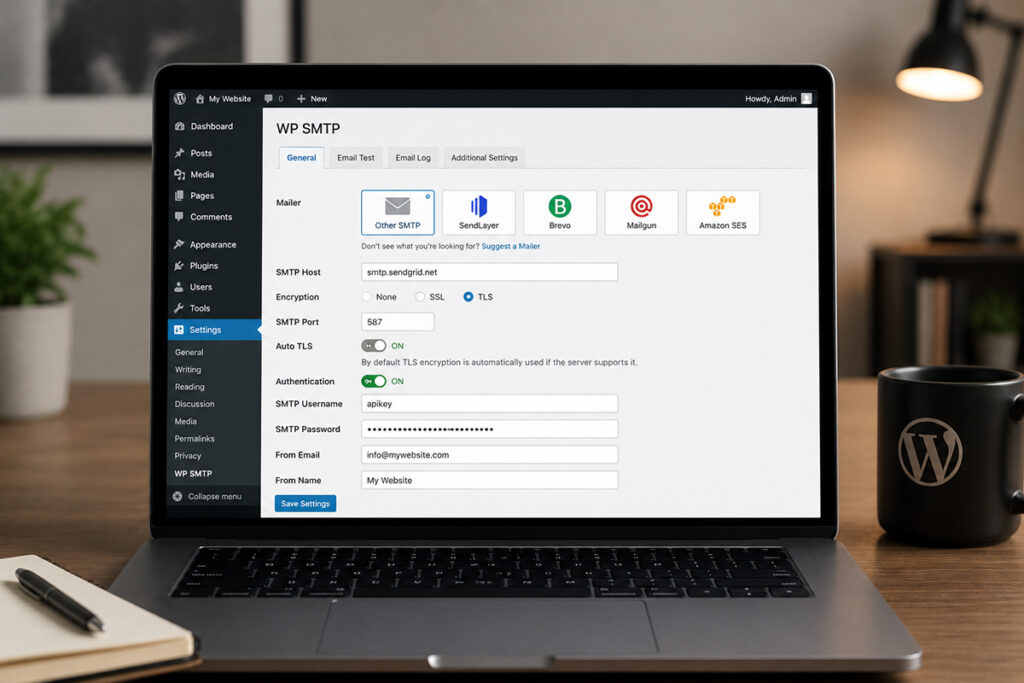
#4 Use SMTP
An SMTP plugin connects WordPress to an email provider using secure credentials or an API. This improves reliability, provides clearer error reporting, and reduces the likelihood of messages disappearing without a trace.
Choose the right sending method
The best option depends on how your business manages email and how many messages your website sends.
- Google Workspace or Microsoft 365 SMTP/API can suit businesses already using these platforms for company email.
- Transactional email services are often better for websites sending frequent form alerts, order notifications, password resets, and WooCommerce emails.
- Hosting email SMTP can work for low-volume websites, but quality varies widely between hosting providers.
#5 Fix SPF, DKIM, and DMARC Records
SMTP alone may not solve every issue. Major email providers increasingly check whether the sending domain is authorized and legitimate. That is where SPF, DKIM, and DMARC come in.
These records live in your domain’s DNS settings. They tell receiving mail servers which systems are allowed to send email for your domain and how to handle suspicious messages.
What each record does
- SPF identifies approved sending services for your domain.
- DKIM adds a digital signature that helps prove the email was sent by an authorized source and was not altered along the way.
- DMARC sets a policy for messages that fail SPF or DKIM checks and can provide reporting on attempted spoofing.
#6 Rule Out Spam Protection and Plugin Conflicts
Spam protection is essential, but it can sometimes block legitimate leads. CAPTCHA tools, anti-spam plugins, firewall rules, and form honeypots may reject submissions when configured too aggressively.
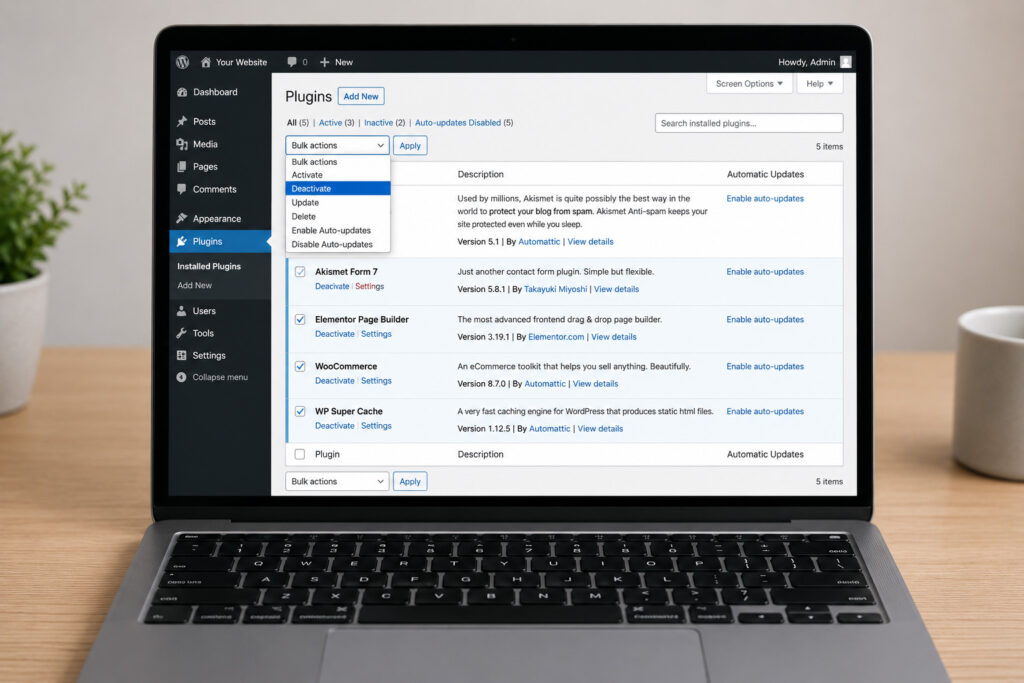
Plugin conflicts are another possibility. Temporarily test with nonessential plugins disabled in a staging environment, not on a live revenue-generating site during business hours. Caching, optimization, security, and popup plugins can all affect how forms load and submit.
If the issue started immediately after a WordPress update, plugin update, migration, or malware cleanup, that timing is a useful clue. Check error logs and recent changes before applying random fixes.
If you have installed SMTP, reviewed the form settings, and still cannot receive inquiries, the problem may be deeper than the form plugin. Server restrictions, DNS errors, malware, database issues, or outdated WordPress components can all affect mail delivery.
A reliable website support provider can check form configuration, SMTP logs, DNS authentication, hosting mail settings, security rules, plugin compatibility, and the overall health of the website. This is particularly worthwhile if your website supports paid advertising, WooCommerce orders, or critical customer support requests.